

Tutorials
Everything the app can do, in short guides. Tap a topic to open it.
How Spend Your Habits works
The Habits PageYour daily checklist of habits, section by section.
-
The Habits page is your daily checklist. It shows the habits scheduled for the selected day, in the sections you defined.
-
Habits, Stats and Challenges sit side by side at the top. Stats has its own guide further down.
-
No habits yet? The empty page gives you two buttons: Browse the Library to pick ready-made habits, or Create your own to open the habit editor.
-
With the coin economy turned off, cards show no coin values and the balance strip is hidden. Checking off habits works exactly the same.
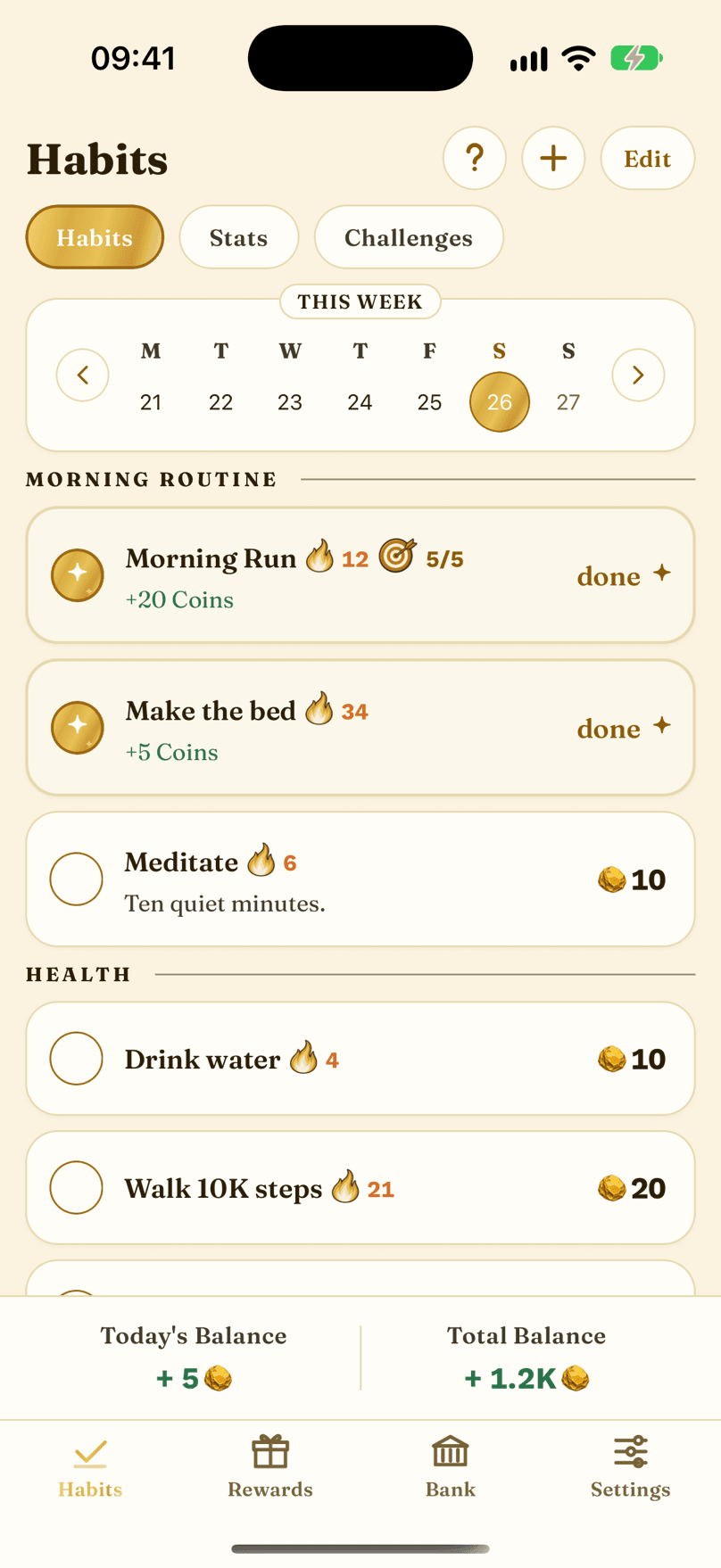
- The + button opens the add menu: a recurring habit, one-off to-dos for a single day, a habit from the Library, or a Pomodoro timer.
- Edit opens the list where you reorder your habits, add labels, and edit or delete each habit.
- The seven-day strip. Tap a day to see what was due. Today and up to 14 days back can be checked off.
- A habit card. Tap the circle to complete it, tap the card to expand its details.
- Today's Balance and your Total Balance, always in sight. Hidden while the coin economy is off.
- Habits group into sections like MORNING ROUTINE and DIET. You create and name them yourself as labels.
- A streak-mode habit card. The 🔥 number shows the current streak.
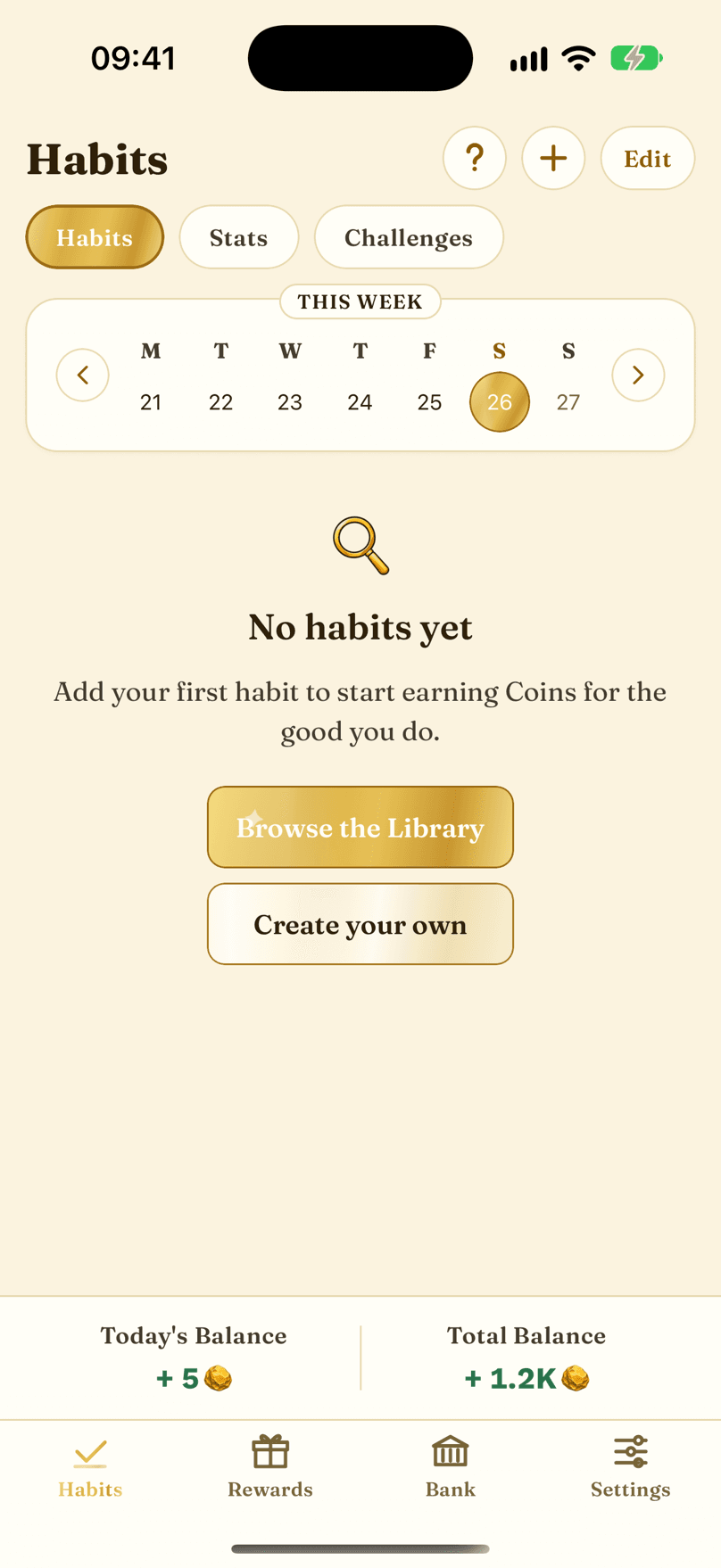
- Browse the Library opens the Habit Library, ready to pick from.
- Create your own opens an empty habit editor.
Streaks, Freezes and Weekly GoalsKeep your streak alive, and repair any missed day.
-
Switch a habit to streak mode and every completion on a scheduled day adds one to the chain. Miss a scheduled day and the chain breaks, but nothing is permanent: any missed day can be repaired within 14 days.
-
Freezes protect a streak. You earn them automatically or buy them with coins, and you apply them by hand, so they are always your choice.
-
The Stats view shows every streak habit as a row. Tap a row to open its detail: record, coin economy, freezes, and the starting date.
-
A streak habit can carry an optional weekly goal, like five workouts instead of seven. With a goal set, the streak only breaks when the week becomes unreachable, and recovery follows the same 14-day window.
-
In the week you create a habit, its weekly goal shrinks to fit the days that are left. Stats shows this under the week counter, for example First week: 3 needed.
-
With the coin economy turned off, the Coin economy tile reads Currently turned off, and buying freezes and the one-time streak reward are hidden. Freezes you earn keep working as usual.
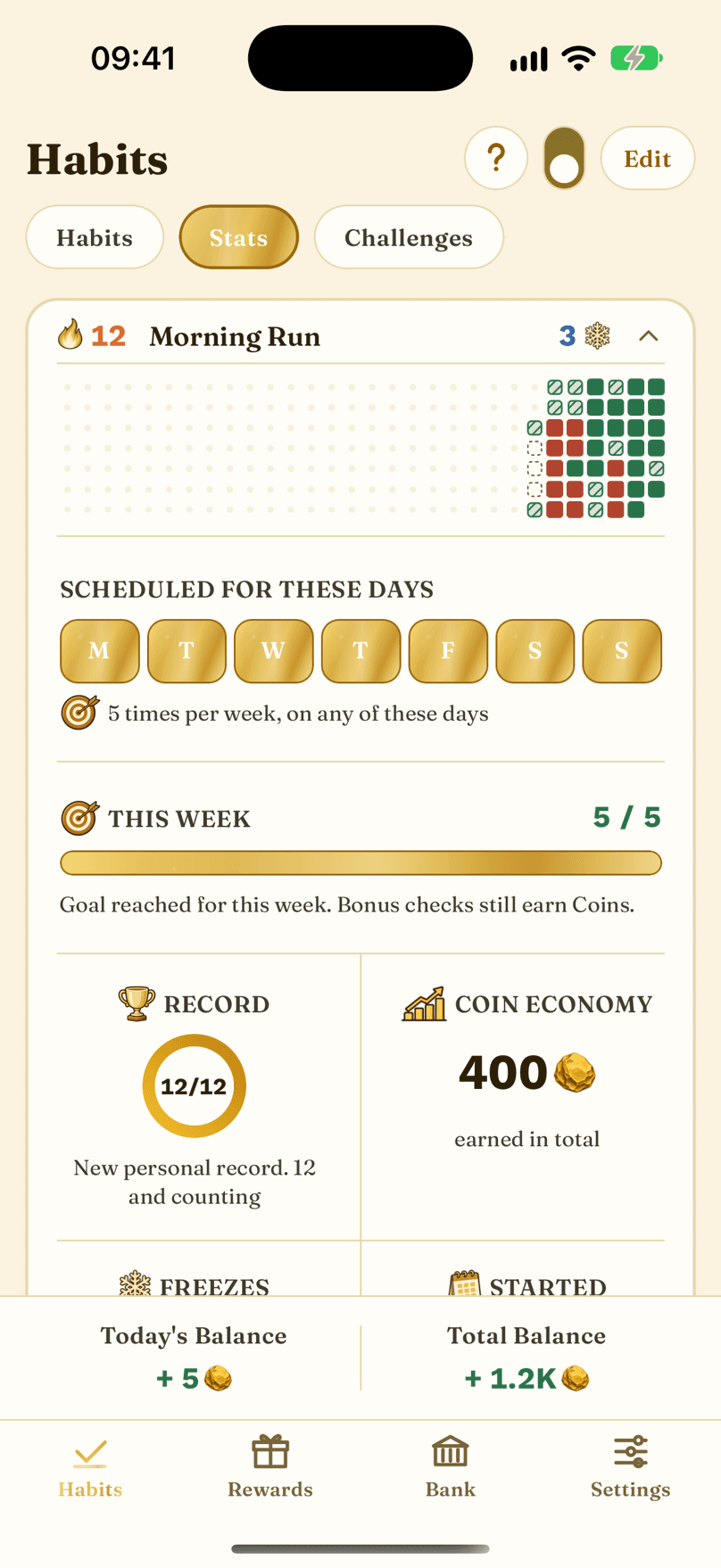
- The row header: current streak, title, and the freezes in your bank.
- The schedule panel. The letters are the days the habit is due.
- This week's goal counter. 5 of 5 means the week is done, and extra checks still earn. In a habit's first week the goal can be smaller.
- The record tile: best streak, and the current one against it.
- The coin economy tile: everything this habit has earned. It reads Currently turned off while coins are off.
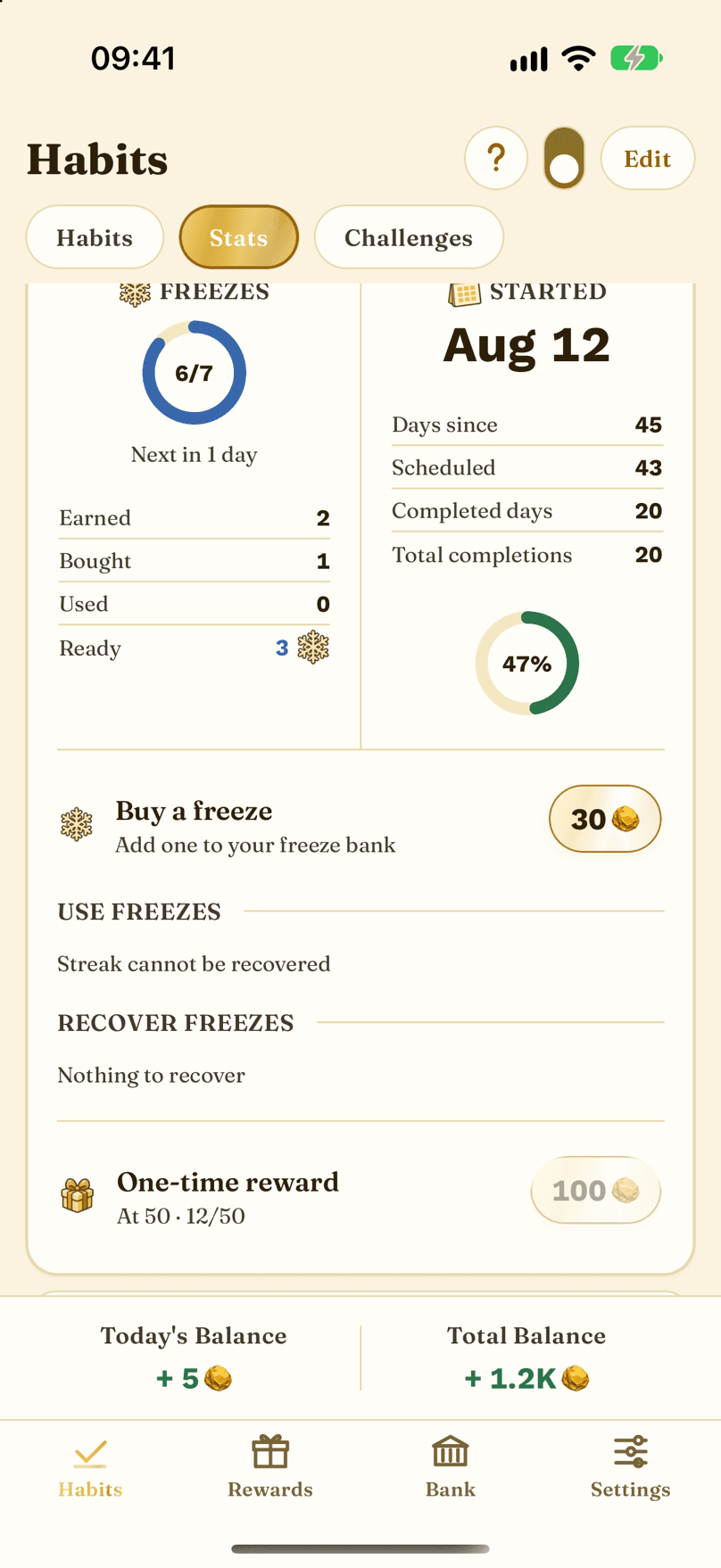
- The freeze tile: Earned is what your rate has given you, Bought is what you paid coins for, Used is what you applied, and Ready is what you can still spend.
- The Started section: the date this habit began. Days since, scheduled and completed counts live here.
- Buy a freeze and repair a streak here. Once a streak breaks and you have freezes ready, Repair streak applies them. Buying is hidden while the coin economy is off.
- One-time reward: the optional coin bonus for reaching this habit's streak goal, set in the editor. None set means there is no bonus yet.
Edit Your HabitsReorder, label, edit, and delete your habits.
-
Tap Edit on the Habits page to open this list.
-
Reorder habits and group them under labels you name yourself.
-
Every row has an edit button and a delete button. Deleting a habit asks first and removes its streak and stats. Coins it already earned stay in your history.
-
To add a habit, use the + button on the Habits page: create your own or pick one from the Library.
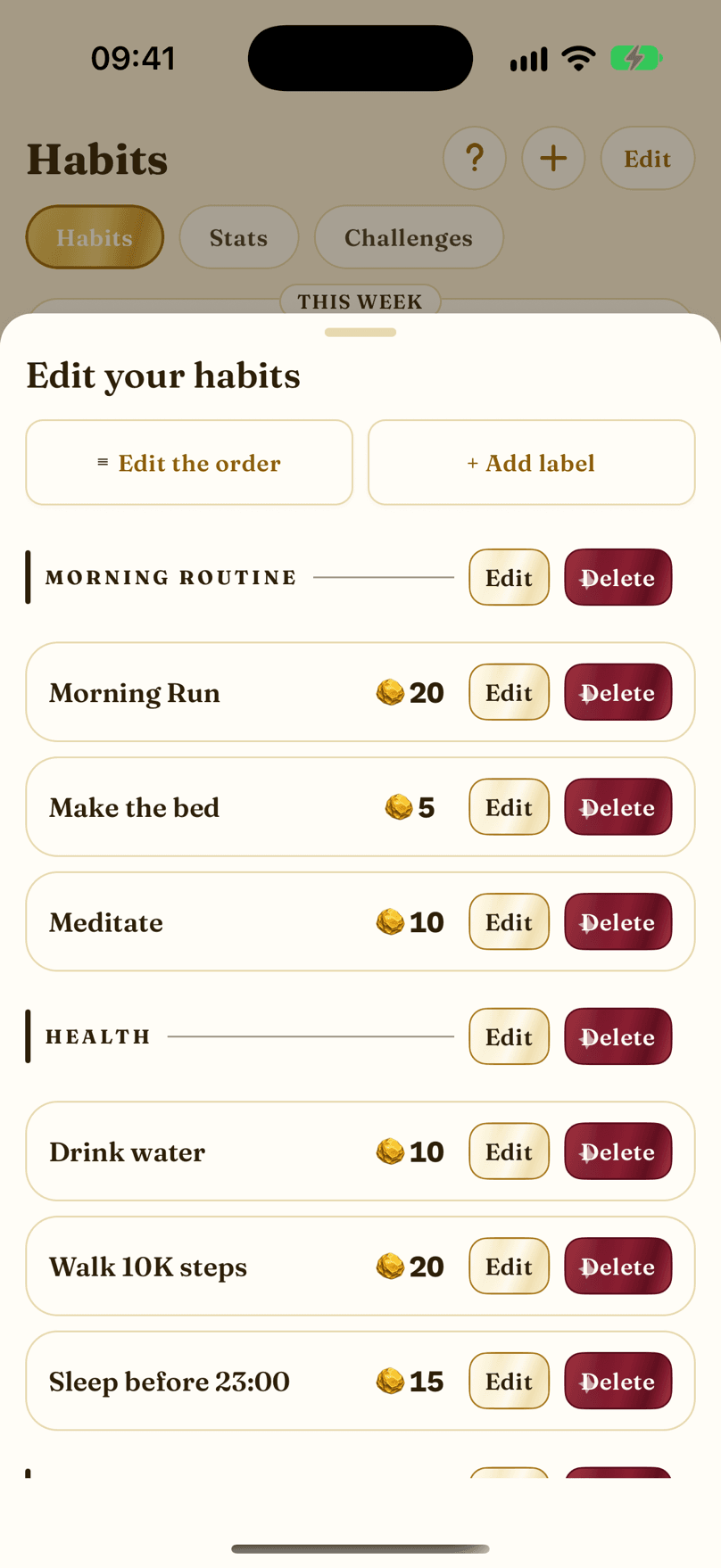
- Edit the order: press and hold a handle, then drag.
- + Add label: group habits into named sections.
- A label row, with its own edit and delete buttons. Deleting a label keeps its habits, and you can undo it.
- A habit row with its coin value. The value is hidden while the coin economy is off.
- Edit opens this habit in the editor.
- Delete asks you to confirm, then removes the habit.
Create or Edit a HabitTitle, coins, schedule, and how you track it.
-
The habit editor is where a habit is born: title, coin value, schedule, and how you want to track it.
-
The Difficulty to Coins slider suggests a value from Easy 5 to Epic 50, or you can type any whole number from 0 to 99,000. A habit worth 0 coins still counts for streaks and stats, it just pays nothing. An empty field is not the same as 0: the editor asks you to enter a number before it saves.
-
The schedule chooses the days the habit is due, and the tracking mode decides what happens when you miss one.
-
Freeze settings live here too: how often you earn a freeze, whether you can buy them, and what they cost.
-
With the coin economy turned off, the coin value, buying freezes and the streak goal bonus are hidden, and habits are saved at 0 coins.
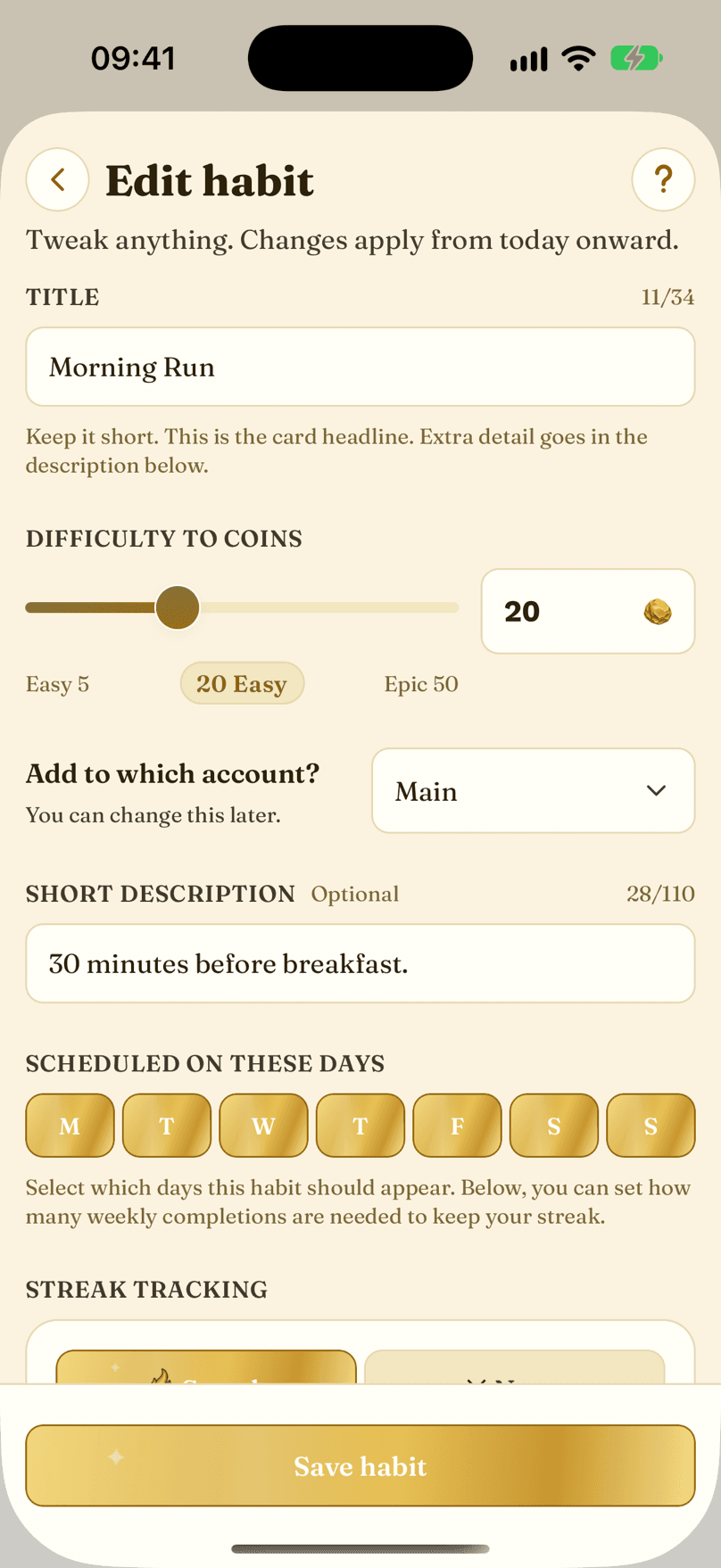
- Back closes the editor without saving.
- The title, up to 34 characters.
- Difficulty to Coins: drag the slider for a suggestion, or type the exact coins per completion. 0 is allowed.
- The short description shown on the card.
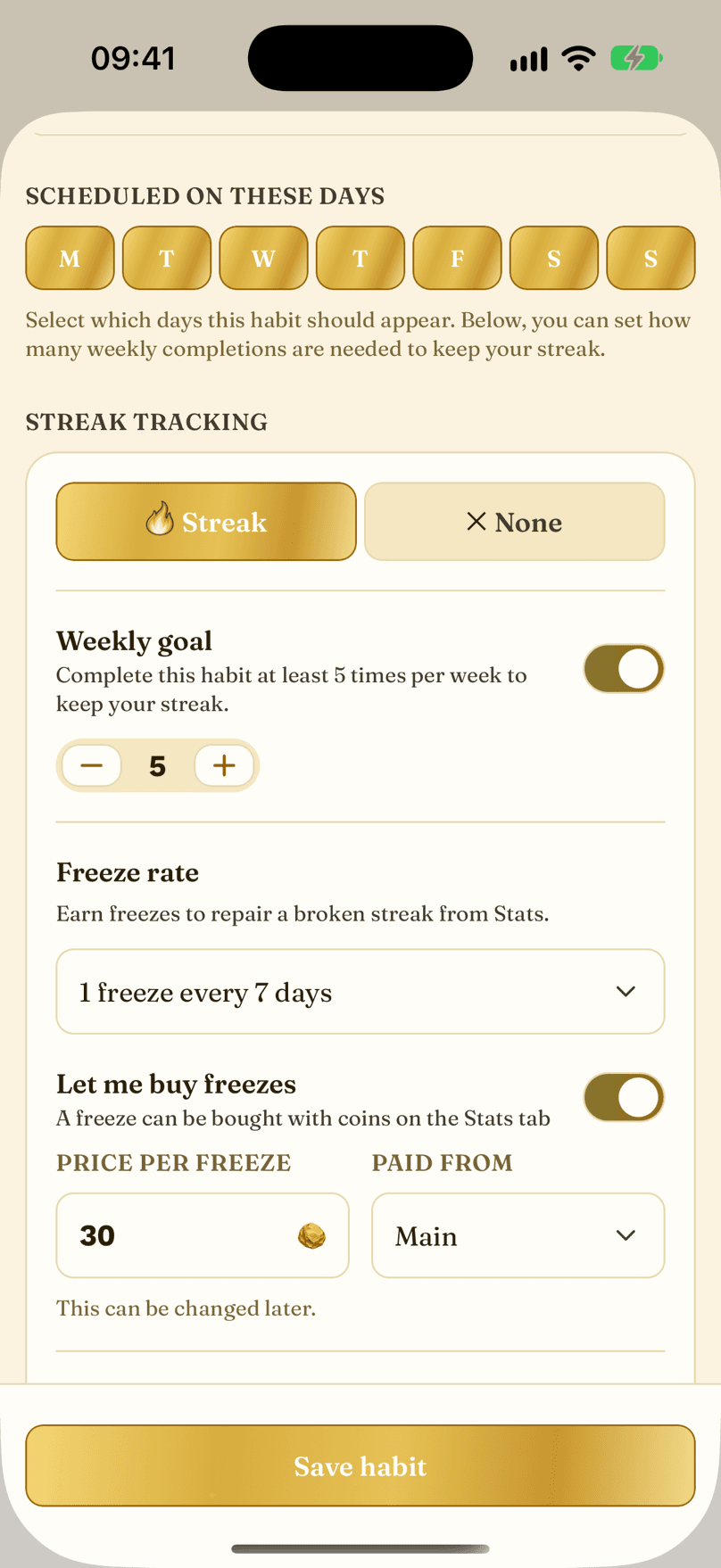
- The schedule: tap the days the habit is due.
- How to track this: streak mode, or no streak at all.
- The no-streak option: every completion counts, nothing breaks. None-mode habits stay off the Stats page.
- The weekly goal stepper, capped by the scheduled days.
- The freeze rate: earn a freeze every so many completions, or turn them off.
- Let me buy freezes: allow buying freezes with coins you earned.
- Price per freeze: what a bought freeze costs.
- Save applies the changes from today onward.
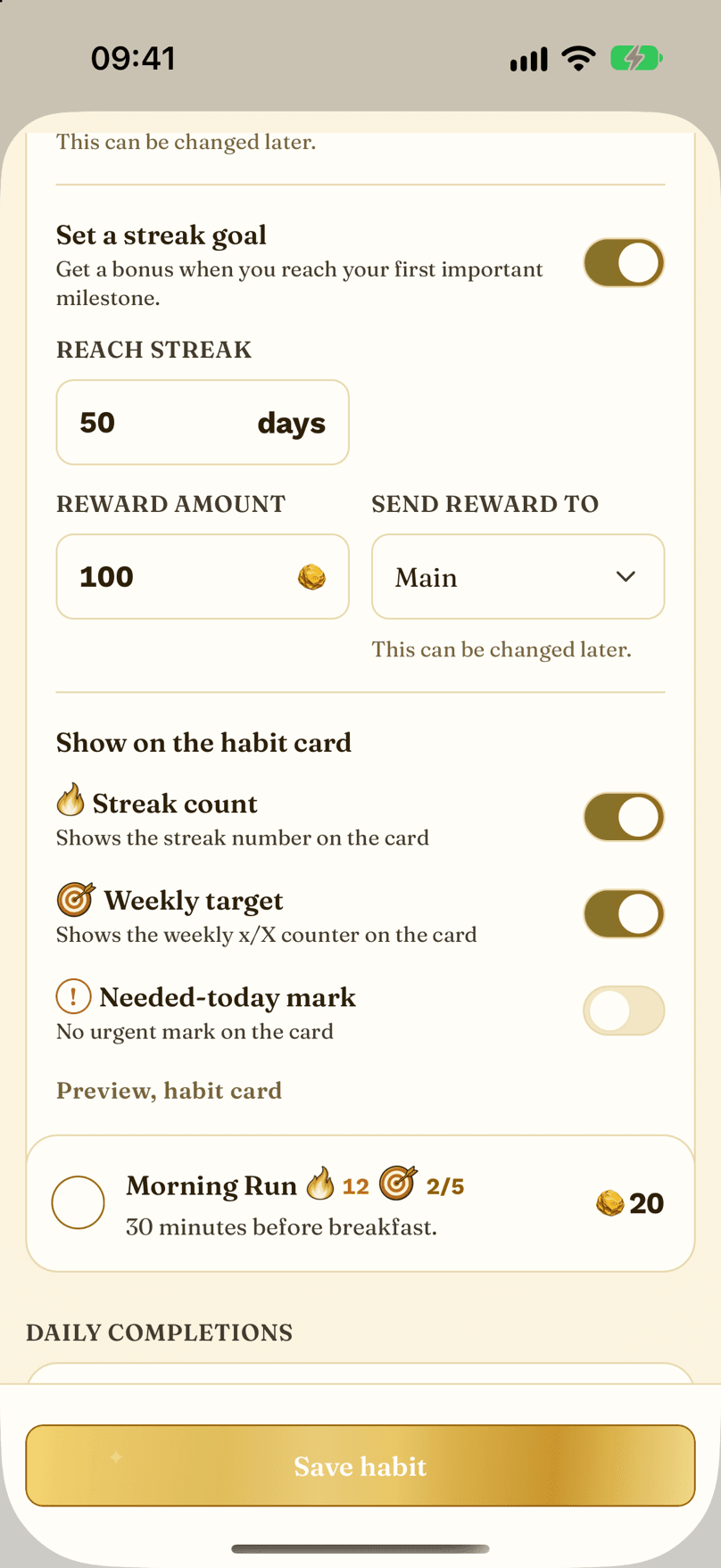
- Streak goal: an optional coin bonus for reaching a target streak. You can change it until the bonus is collected. Hidden while the coin economy is off.
- Set a streak goal: the bonus appears when you reach the target streak.
- Show on the habit card: choose what the card displays.
- The streak count chip, shown on the card.
- A live preview of the card, updated as you change the settings.
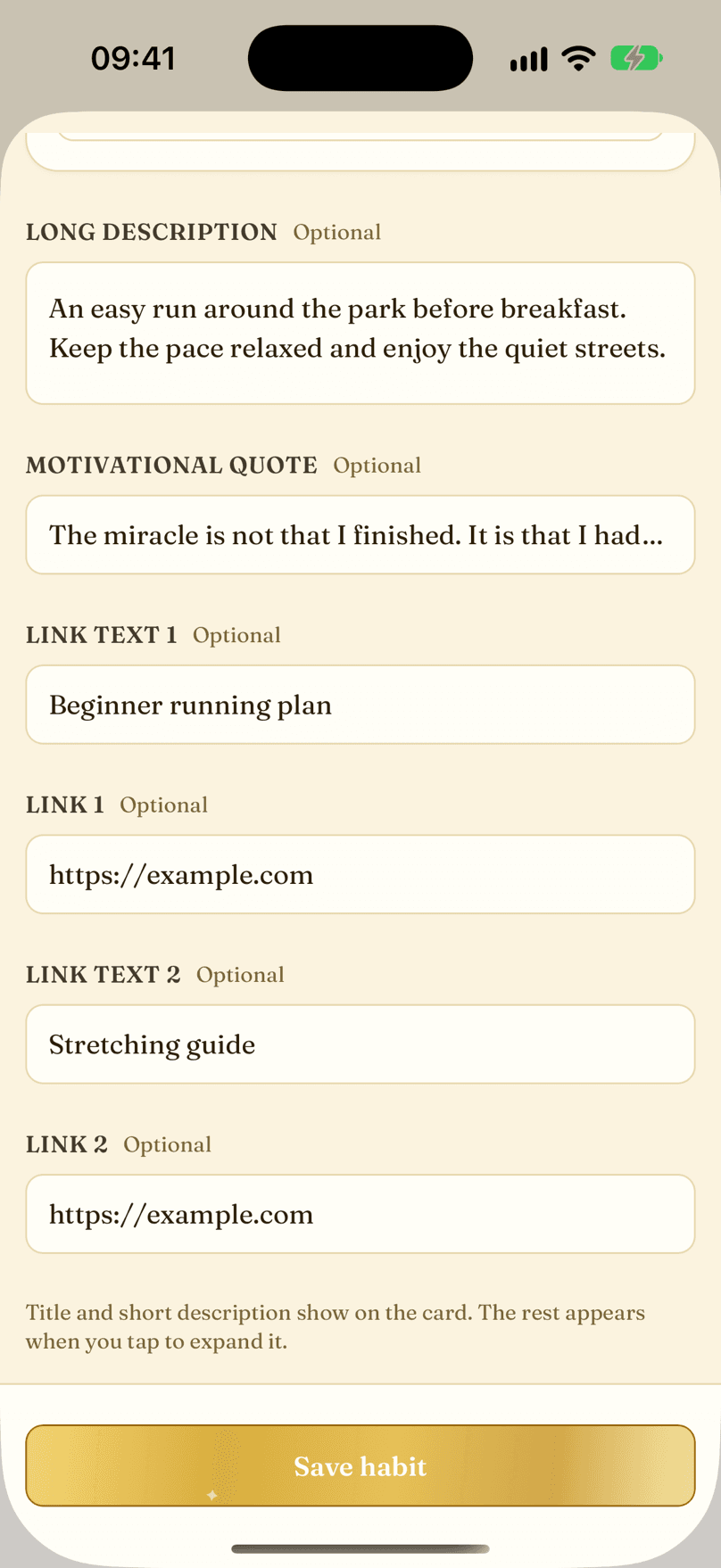
- The long description, shown when the card expands.
- A motivational quote for the card's details.
- The text of your first link.
- The URL behind that link text.
- The text of your second link.
- The URL behind it.
- Save applies the changes from today onward.
Habit LibraryProven habits ready to add in one tap.
-
The library is a curated catalogue of proven habits, ready to add with one tap.
-
Search by name, filter by category, and sort by most downloads, new, recommended, or coin value. Pick any number of habits; each one lands in your list with a sensible coin value and schedule you can edit right away.
-
Found a pack on our website? Paste its copy code into the search box and the matching cards appear. Codes work in English, Spanish and German.
-
With the coin economy turned off, coin values and the coin sort options are hidden.
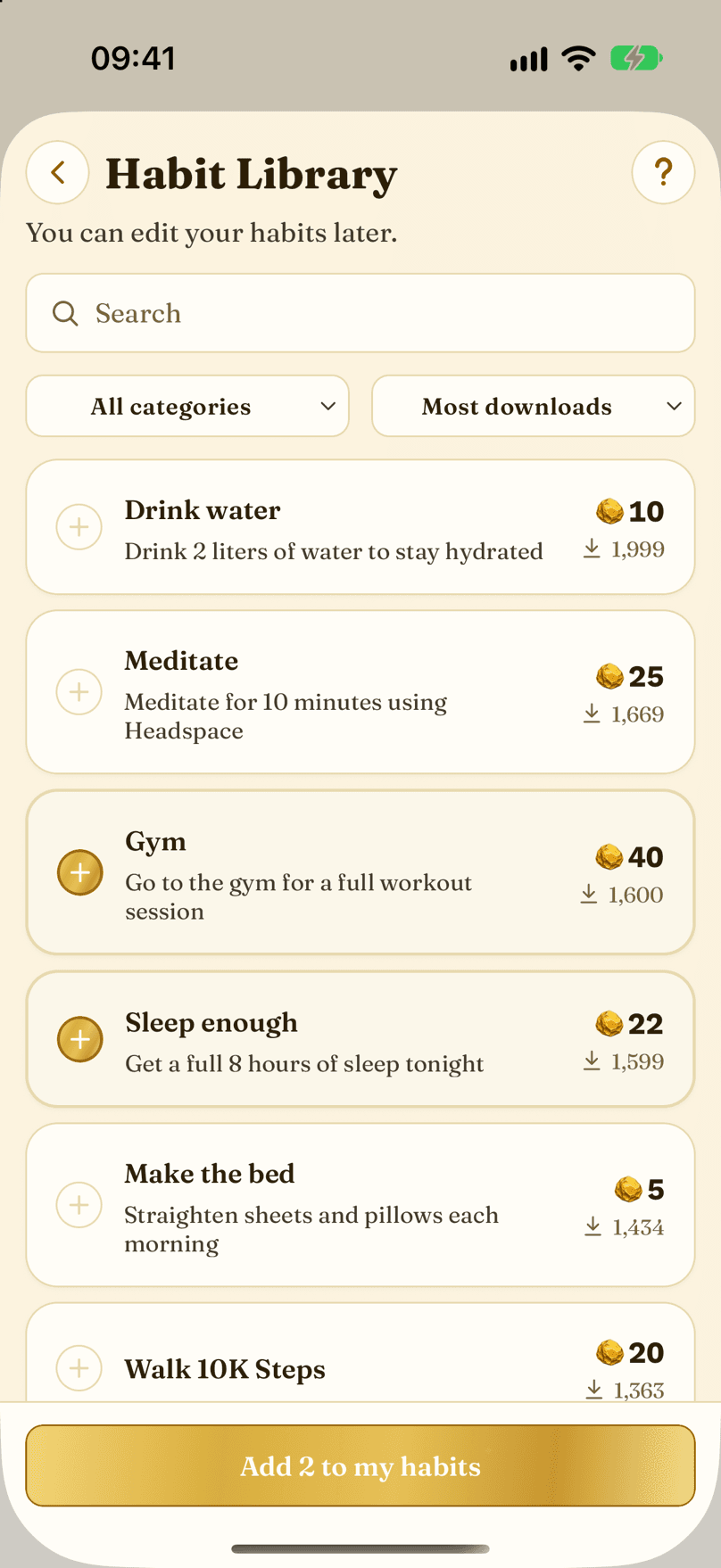
- Search the catalogue by name, or paste a copy code.
- Filter by category.
- Sort by most downloads, new, recommended, or highest and lowest coins.
- A library row: title, coin value, and downloads.
- The add bar. It stays disabled until you pick something.
- Tap the circle on the left to select a habit, or tap the card to read its details.
RewardsBuy the treats you want with the coins you earned.
-
The Rewards page is your menu. Every reward has a coin price you set, and you buy it with the coins you earned.
-
Tap a price to buy that reward on the selected day, then use the minus and plus stepper to buy more or return one. Returns follow the same 14-day window.
-
The balance strip follows the day you pick. For today it reads Today's Balance; for any other day it names that day, like Tue 22 Balance. The Total Balance next to it stays the same.
-
A price can be anything from 0 to 99,000 coins. Set it yourself, or let the pricing calculator suggest one from what your habits earn.
-
No rewards yet? The empty page gives you Browse the Library and Create your own.
-
With the coin economy turned off, prices and balances are hidden and every card shows a minus and plus stepper starting at 0, so you can still count the treats you had.
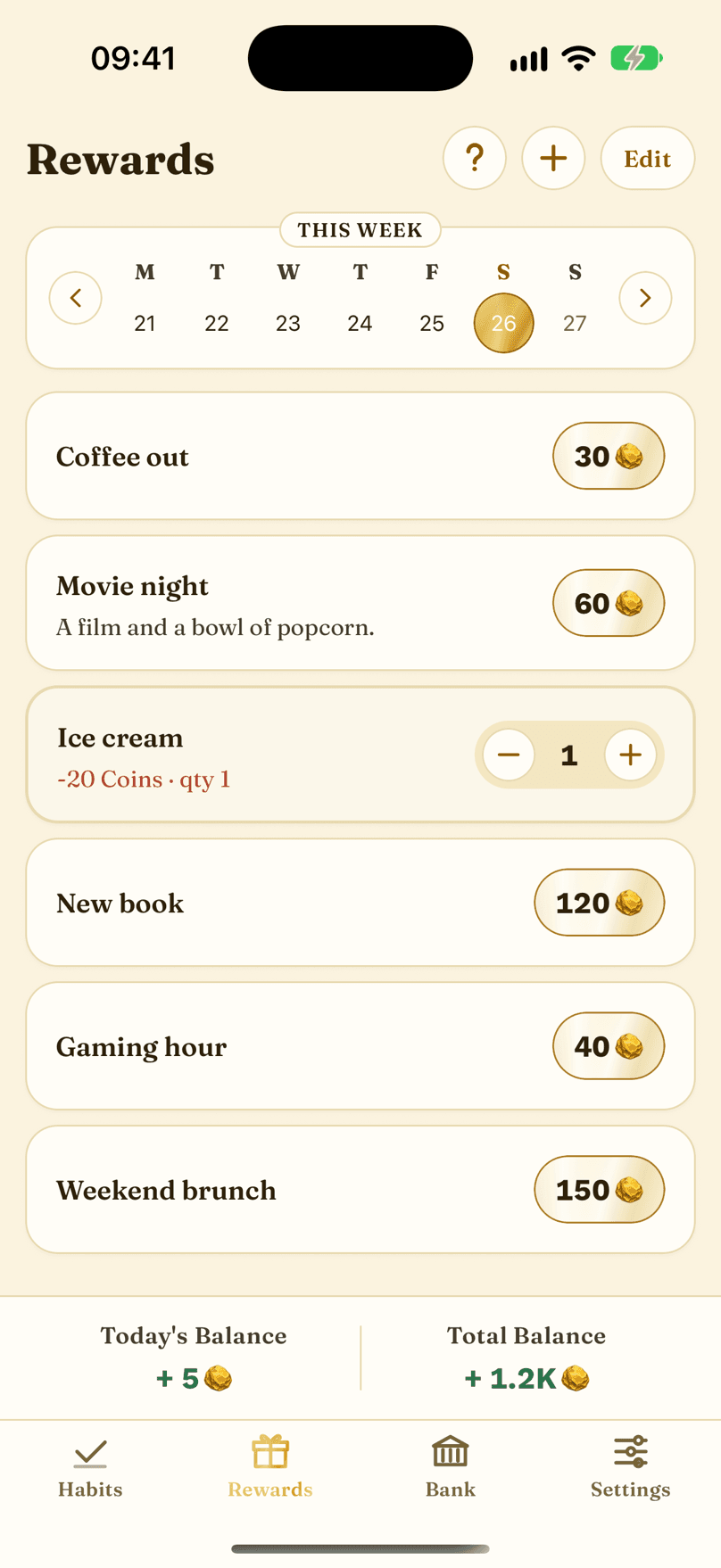
- The + button opens the add menu: a reward for your menu, a one-off reward just for today, or one from the Library.
- Edit opens the list where you rearrange your rewards, add labels, and open the pricing calculator.
- The seven-day strip. Rewards are bought for the selected day. Tap a day to check or buy for any day, up to 14 days back.
- A reward card with its price. Tap the price to buy it, tap the card for its details.
- The balance strip: the selected day's balance on the left, your Total Balance on the right.
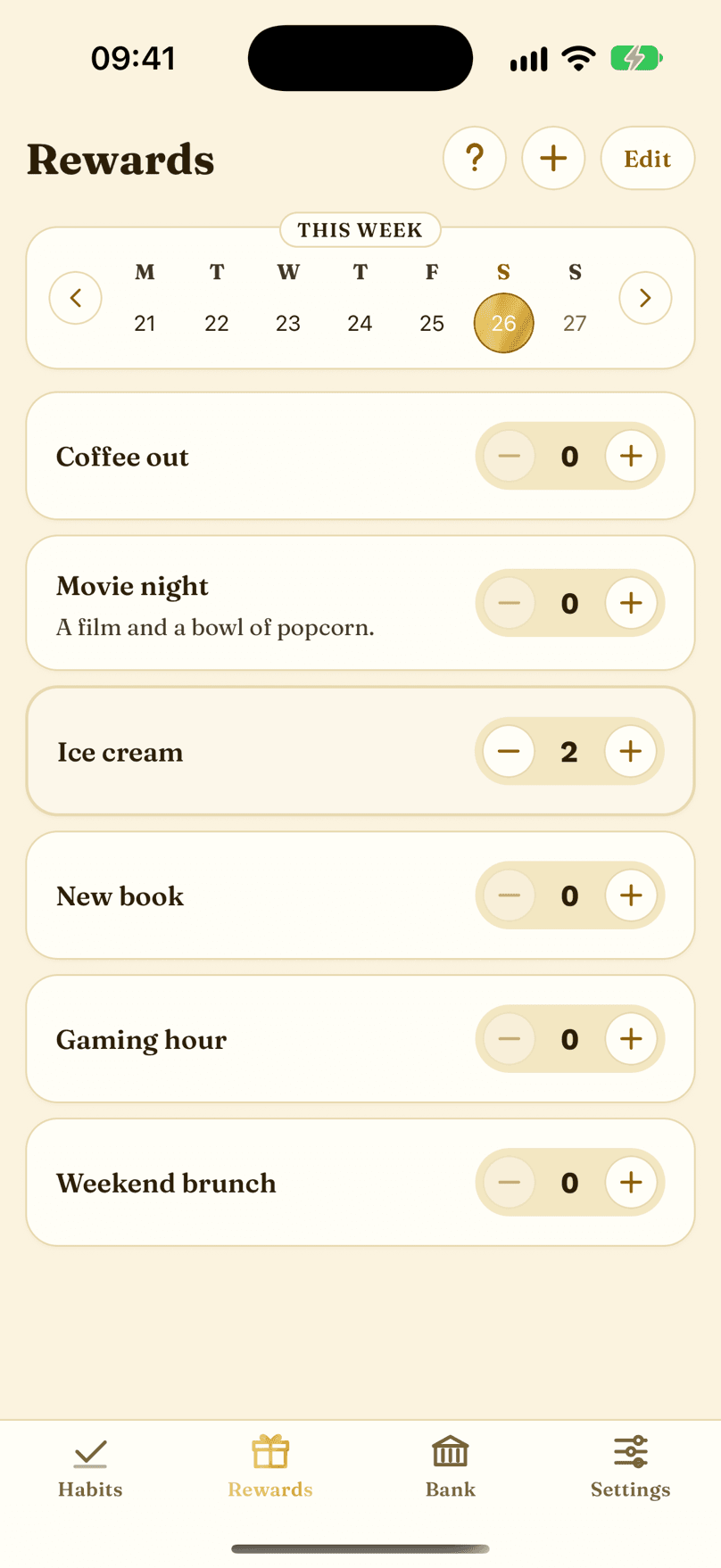
- Coins off: a reward card with a minus and plus stepper starting at 0. Minus stays disabled at 0.
- No price, no balance strip. The quantity still counts for the selected day.
Edit Your RewardsReorder, label, price, and delete your rewards.
-
Tap Edit on the Rewards page to open this list.
-
Reorder rewards and group them under labels, just like habits.
-
The Rewards Pricing Calculator button sets prices from what your habits earn. It is hidden while the coin economy is off.
-
Deleting a reward asks first. Coins you already spent on it stay in your history.
-
To add a reward, use the + button on the Rewards page: a reward for your menu, a one-off reward for today, or one from the Library.
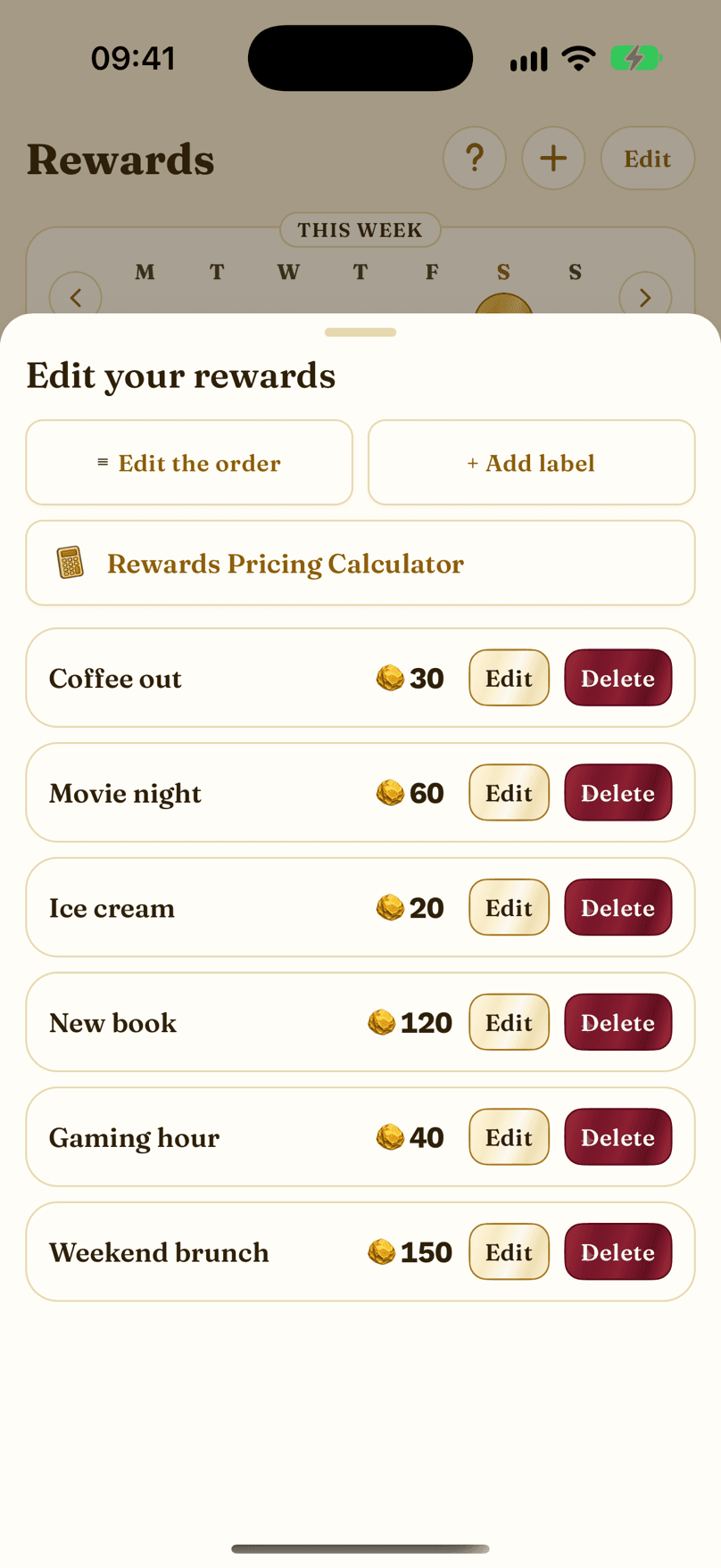
- Edit the order: press and hold a handle, then drag.
- + Add label: group rewards into named sections.
- The Rewards Pricing Calculator: set prices from your coin income.
- A reward row with its price.
- Edit opens this reward in the editor.
- Delete asks you to confirm, then removes the reward from your menu.
Create or Edit a RewardName, price in coins, and the details.
-
The reward editor shapes what you spend on: the name, the coin price, and the details on the card.
-
Type the price as a whole number from 0 to 99,000 coins. A 0-coin reward is free, and you can still count it. A new reward starts with an empty price, and the editor asks you to enter a number before it saves.
-
After you create a reward, the Rewards Pricing Calculator opens so you can set a fair price from what your habits earn. That is also where you rate how big a treat is.
-
The longer fields fill the card's details, which open when you tap the reward.
-
With the coin economy turned off, the price is hidden, the calculator does not open, and rewards are saved at 0 coins.
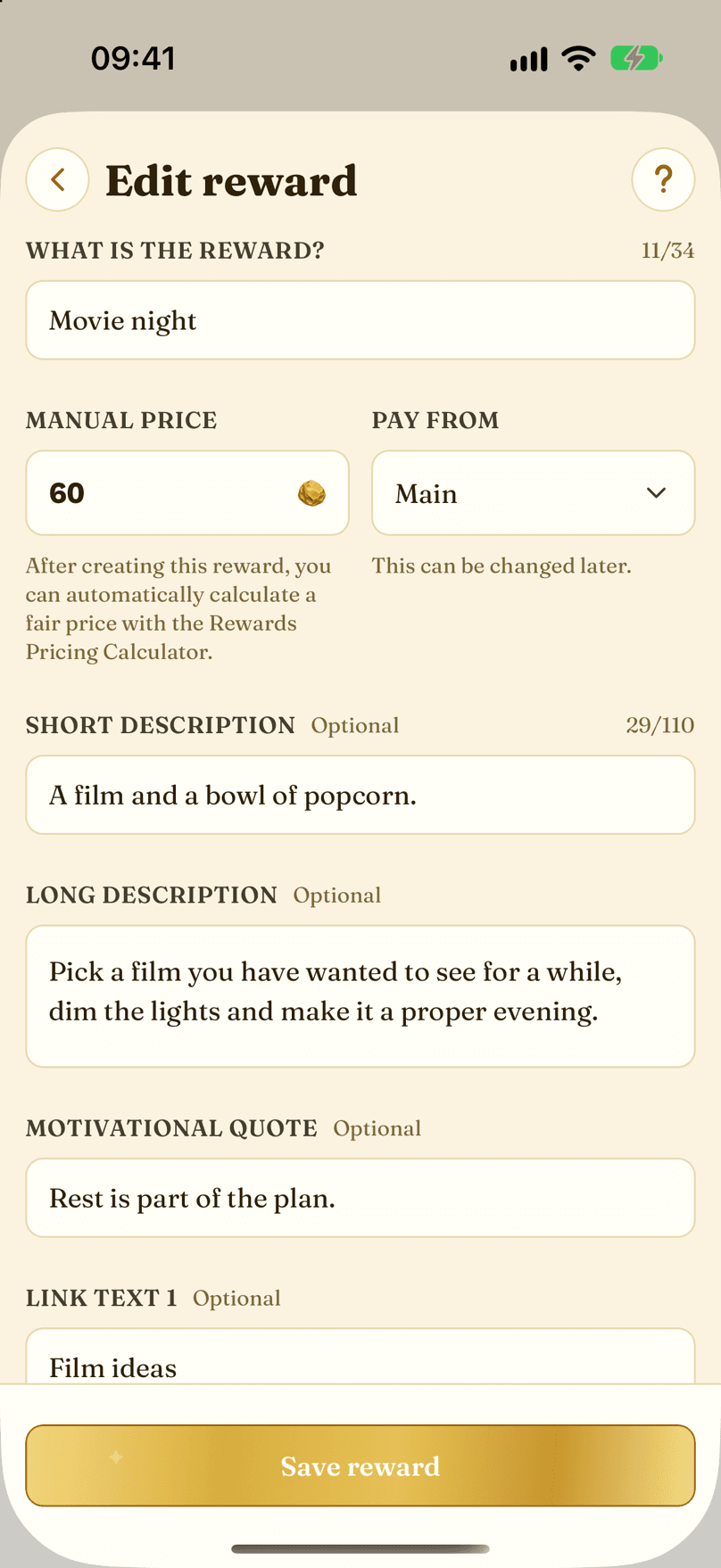
- What is the reward? The name, up to 34 characters.
- Manual price: the price in coins. Type an exact number. 0 is allowed, an empty field is not.
- The short description shown on the card.
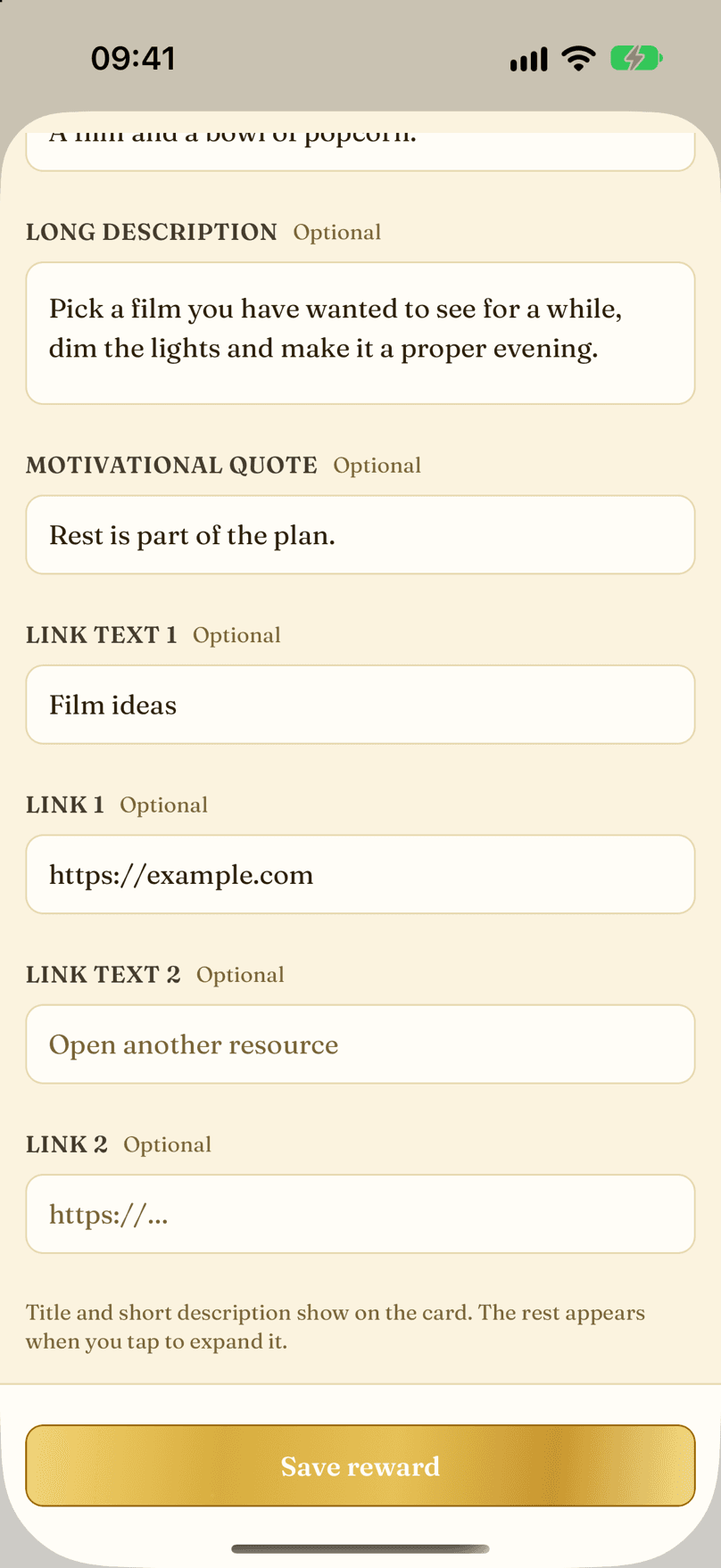
- The long description, shown when the card expands.
- A motivational quote for the card's details.
- The text of your first link.
- The URL behind that link text.
Rewards LibraryReady-made rewards, one tap away.
-
The library is a curated catalogue of ready-made rewards, ready to add with one tap.
-
Search by name, filter by category, and sort by most downloads, new, recommended, or price. Pick any number; each one lands in your menu with a price you can edit right away.
-
Copy codes from the packs on our website work here too: paste one into the search box.
-
With the coin economy turned off, prices and the coin sort options are hidden.
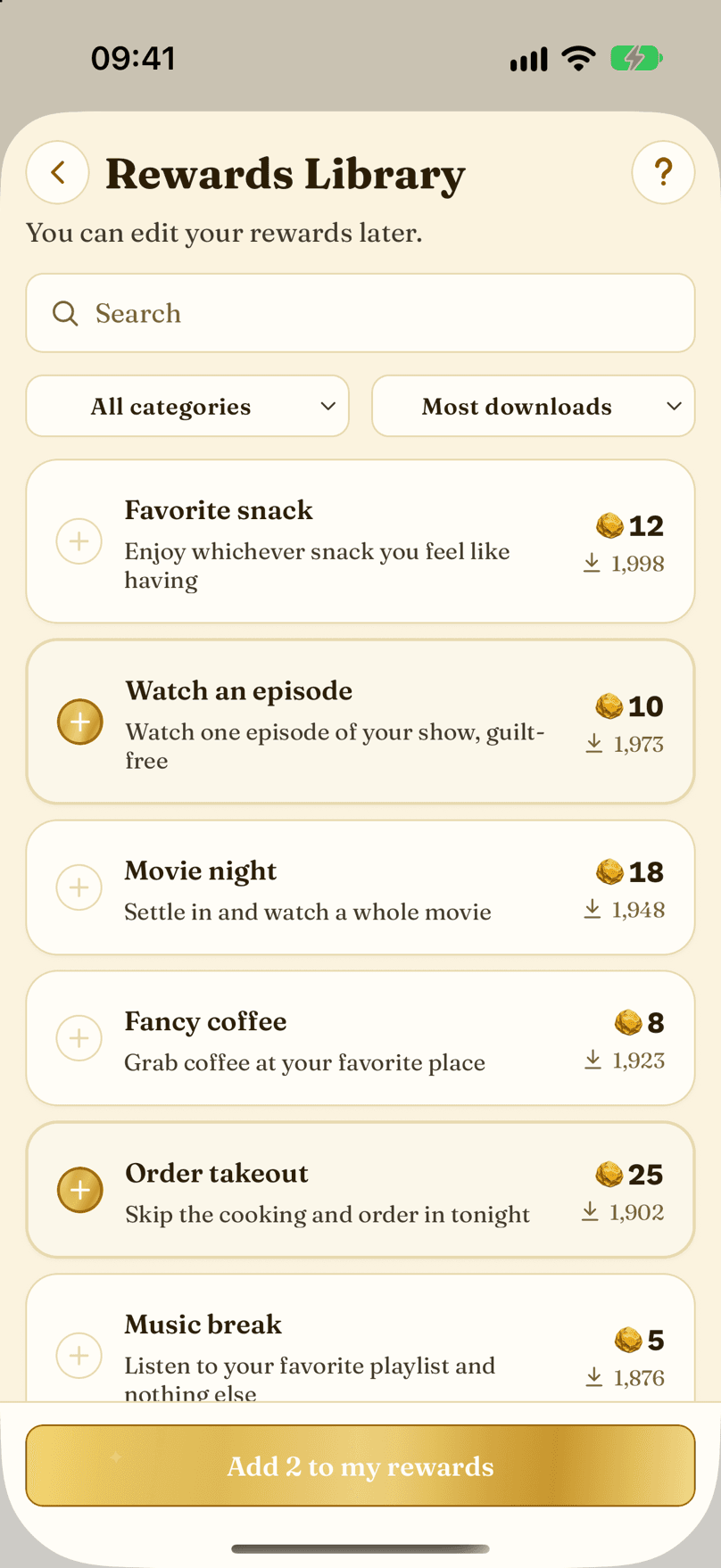
- Search the catalogue by name, or paste a copy code.
- Filter by category.
- Sort by most downloads, new, recommended, or highest and lowest coins.
- A library row: title, price, and downloads.
- Tap the circle on the left to select a reward, or tap the card to read its details.
- Downloads show how popular a reward is.
- The add bar: pick the rewards you want, then add them to your menu in one tap.
Price CalculatorPrices that match what a good week earns.
-
The pricing calculator balances your reward prices against what a good week of habits earns.
-
Open How this works for the steps. Slide the weekly completion percent you usually hit, and the calculator budgets your week from your recurring habits. One-off habits and rewards are left out.
-
For each reward, rate its indulgence and how often you want it per week, choose whether to round the prices, and tick the rewards whose price you want to replace.
-
Apply suggested prices, or skip and keep your own.
-
The calculator is part of the coin economy, so it is hidden while that is turned off.
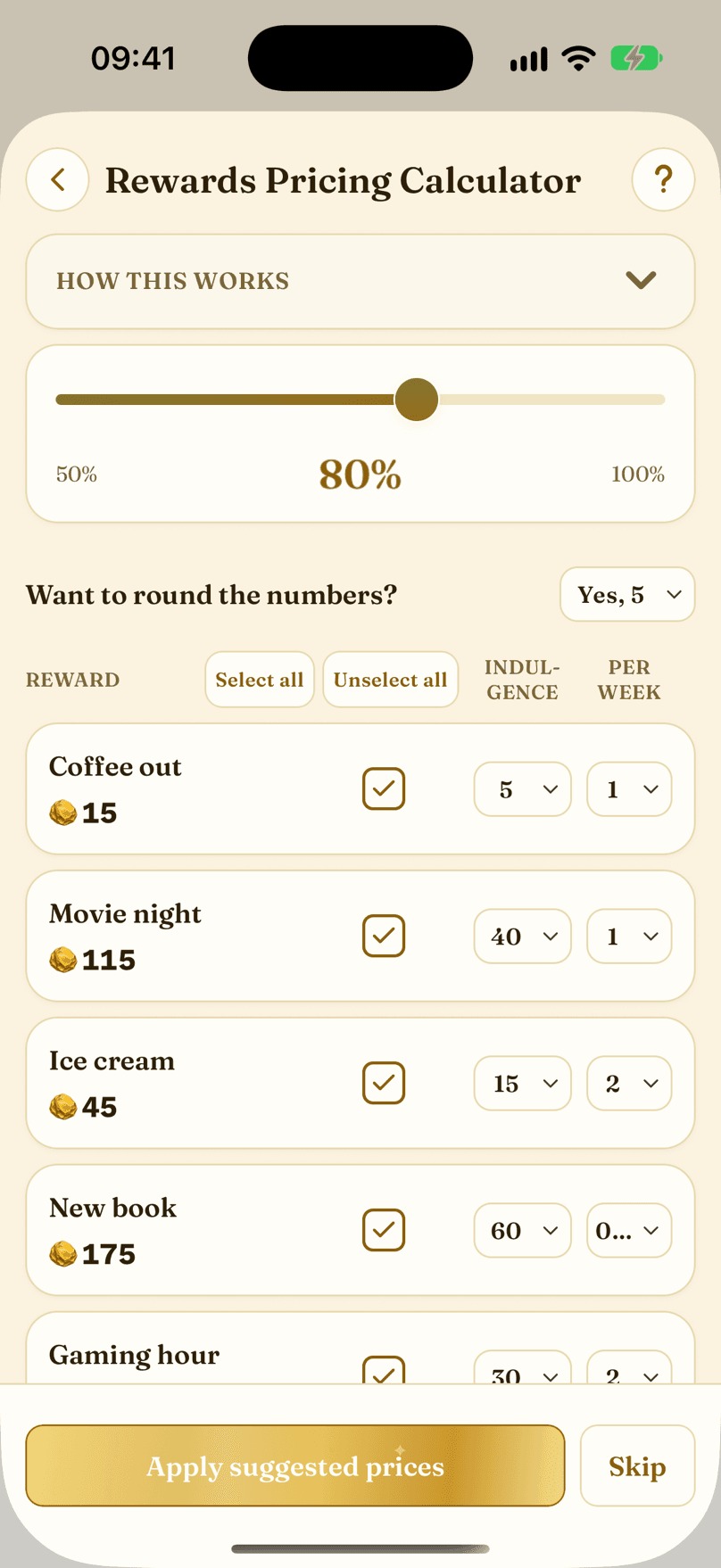
- How this works: the step-by-step instructions. Open or close them as you like.
- Weekly completion percent: how many scheduled habits you usually complete, from 50% to 100%.
- Round prices: keep exact prices, or round to multiples of 2, 5 or 10.
- Select all or unselect all rewards at once.
- Each row shows a reward and its suggested price. The tick decides whether that price is applied.
- Indulgence: how costly each reward is to your goals. A higher rating gives it more weight.
- Per week: how often you want this reward, or Skip to leave it out.
- Apply suggested prices replaces the prices of the ticked rewards. Skip keeps your current prices and closes the calculator.
BankSee what you earned, spent, saved, and where it went.
-
Every habit pays its coin value into your bank, in whole coins. Unchecking a habit reverses exactly what it earned, so the numbers always add up.
-
The Overview shows your Total Balance for the selected range, what you earned and spent, a chart, your accounts at a glance, scheduled savings, and every transaction in a read-only activity log. The range button offers Today, the last 7, 14, 30, 90 or 180 days, this month, last month, or exact dates. Accounts shows one account per page.
-
The Add button lets you move money between Main and your accounts, open a new account with an optional goal, or add a correction for anything the app cannot track. The balance can dip below zero.
-
Scheduled savings move coins from Main into an account on the days you choose. If you don't open the app for more than two months, savings keep paying for the first two months after your last visit and skip the rest. When you come back, one row in the activity log tells you, for example Savings paused while you were away (12 payments skipped), and payments carry on from the next scheduled day. Skipped payments are never paid later.
-
If nothing happened in the selected range, the log says so in one line, like No activity in the last 14 days.
-
With the coin economy turned off, the Bank shows only Coin economy turned off and a note to turn it back on in Settings.
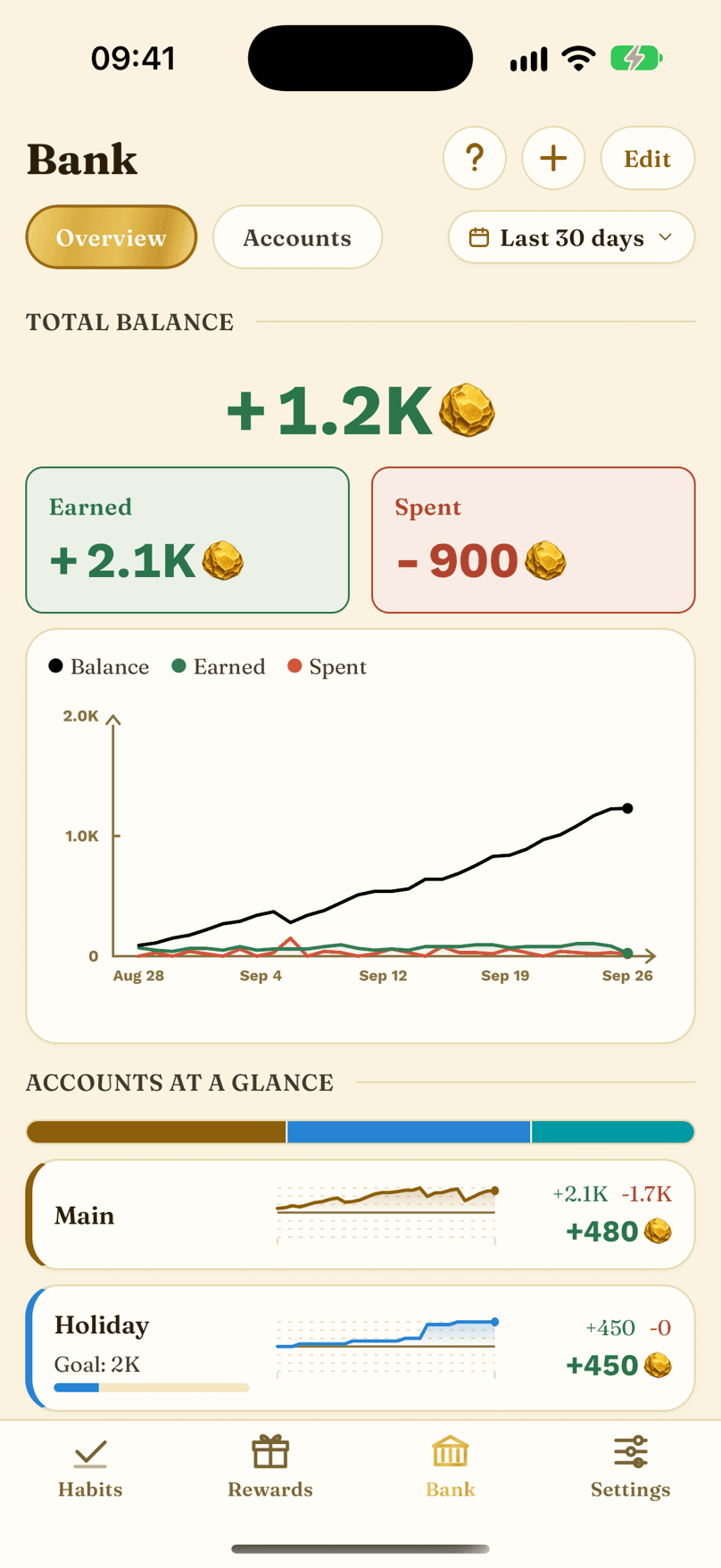
- Overview and Accounts: the whole bank, or one account per page.
- The range button: Today, the last 7 to 180 days, this or last month, or exact dates.
- Total Balance at the end of the selected range.
- Coins earned in the selected range.
- Coins spent in the same range.
- The chart shows earnings and spending across the range.
- Add: move money, open a new account, or add a correction.
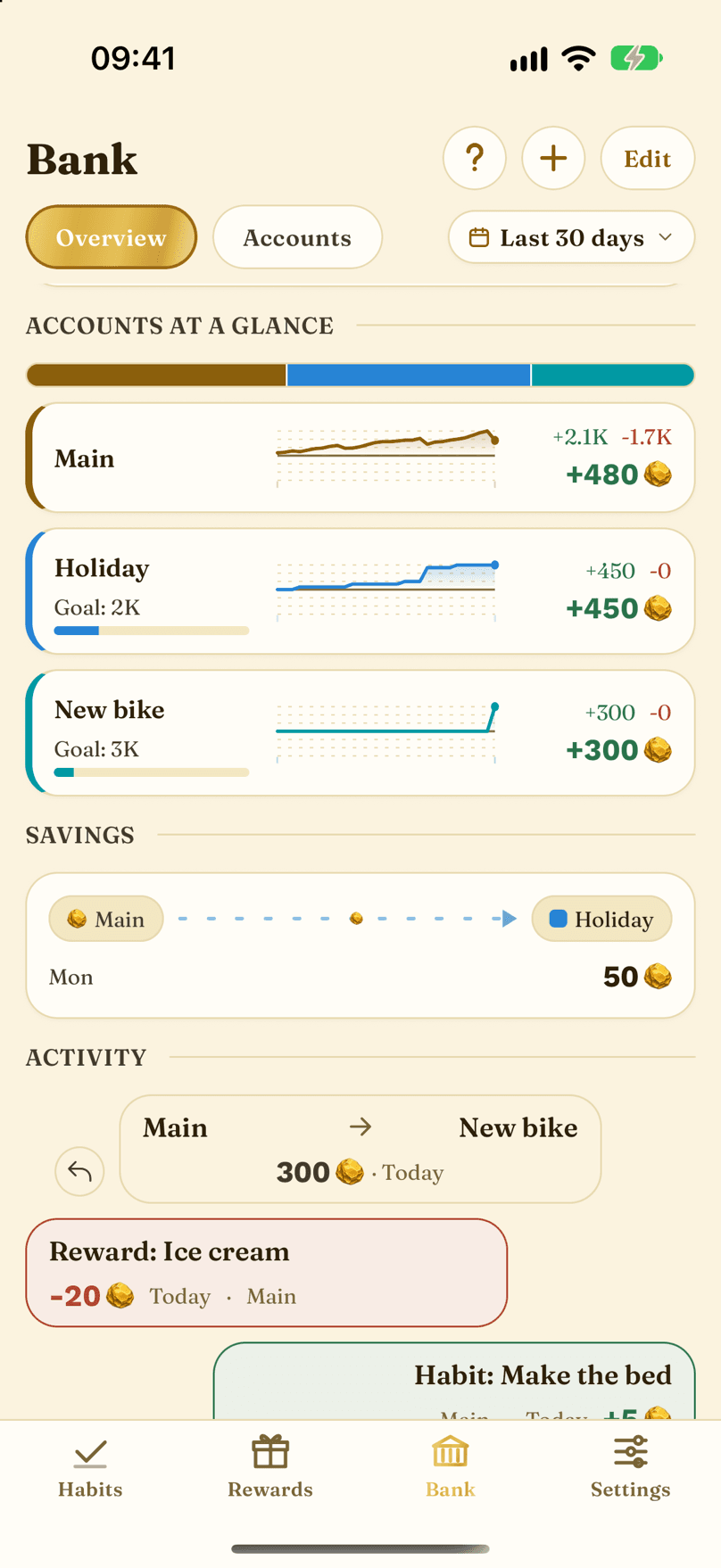
- Accounts at a glance: each account's balance, and its goal if it has one.
- Savings: the scheduled transfers from Main into your accounts.
- The activity log: every transaction, newest first.
- Earning rows show the habit that paid, spending rows the reward that took the coins. Every row carries its date.
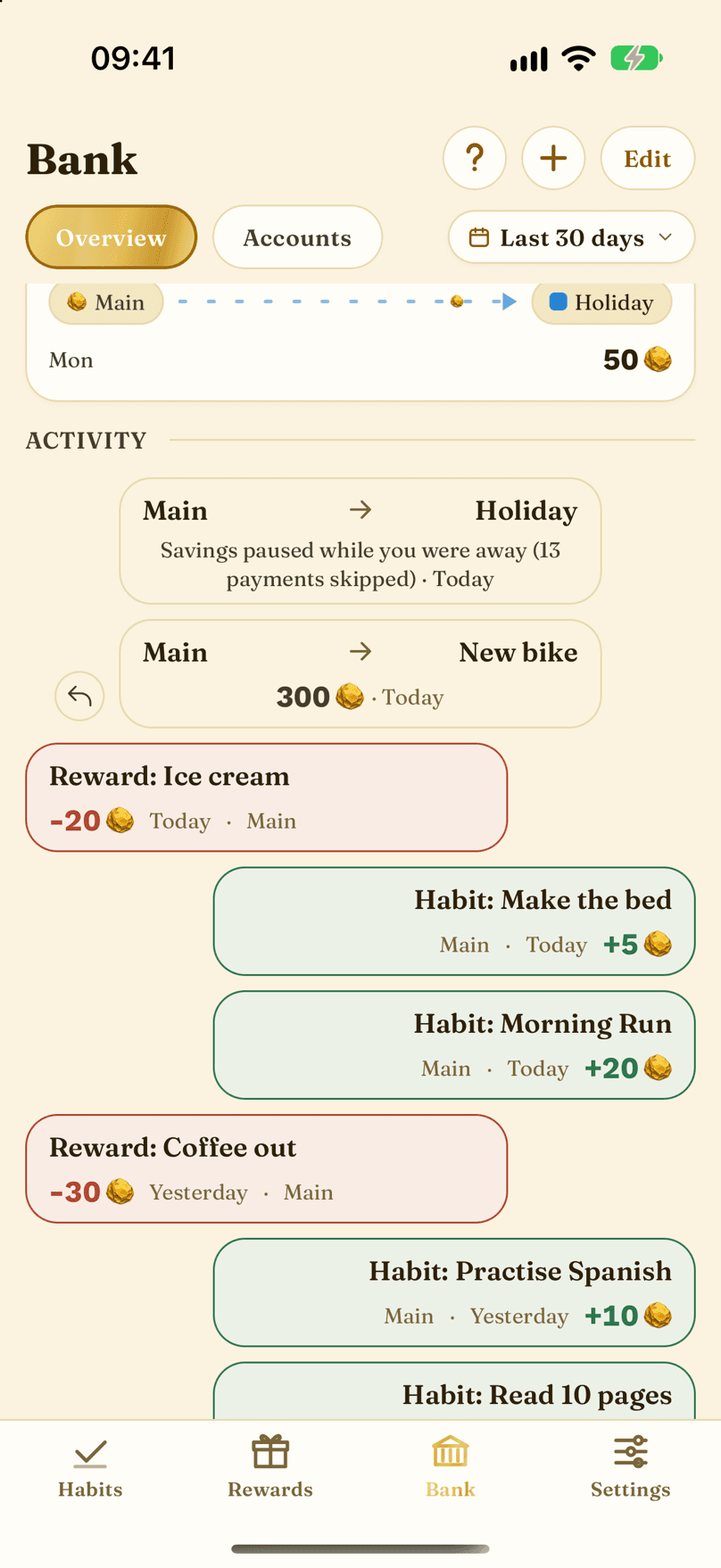
- A savings away row, dated the day you came back. It shows how many payments were skipped, has no amount, and never counts in the totals or the chart.
Coin Economy On or OffTrack your habits without coins, and switch back any time.
-
Coins are optional. If you only want to track habits and streaks, go to Settings > App settings, scroll to Coin economy at the bottom, and flip Earn and spend coins.
-
The switch always asks you to confirm. Type Switch (the same word in every language) and tap the confirm button. Nothing changes until you do, and Cancel leaves everything as it was.
-
Turning coins off is a big change. Every account balance, habit value and reward price becomes 0, and scheduled savings are turned off. The Bank log keeps one correction for each account that went to 0.
-
Your habits, streaks, freezes, rewards and history all stay. Saved streak and Challenge bonuses stay too, but you cannot collect them while coins are off.
-
While coins are off, the Bank shows Coin economy turned off, coin values, prices and balances disappear from cards and editors, and the pricing calculator is hidden. Rewards get a minus and plus stepper starting at 0, so you can still count them. Buying freezes and collecting bonuses wait until coins are back.
-
Turning coins back on only switches the economy on again. Balances, habit values and reward prices stay at 0 until you change them, and savings stay off until you turn them on yourself.
-
You can also use 0 coins with the economy on: a habit worth 0 or a free reward simply moves no coins.
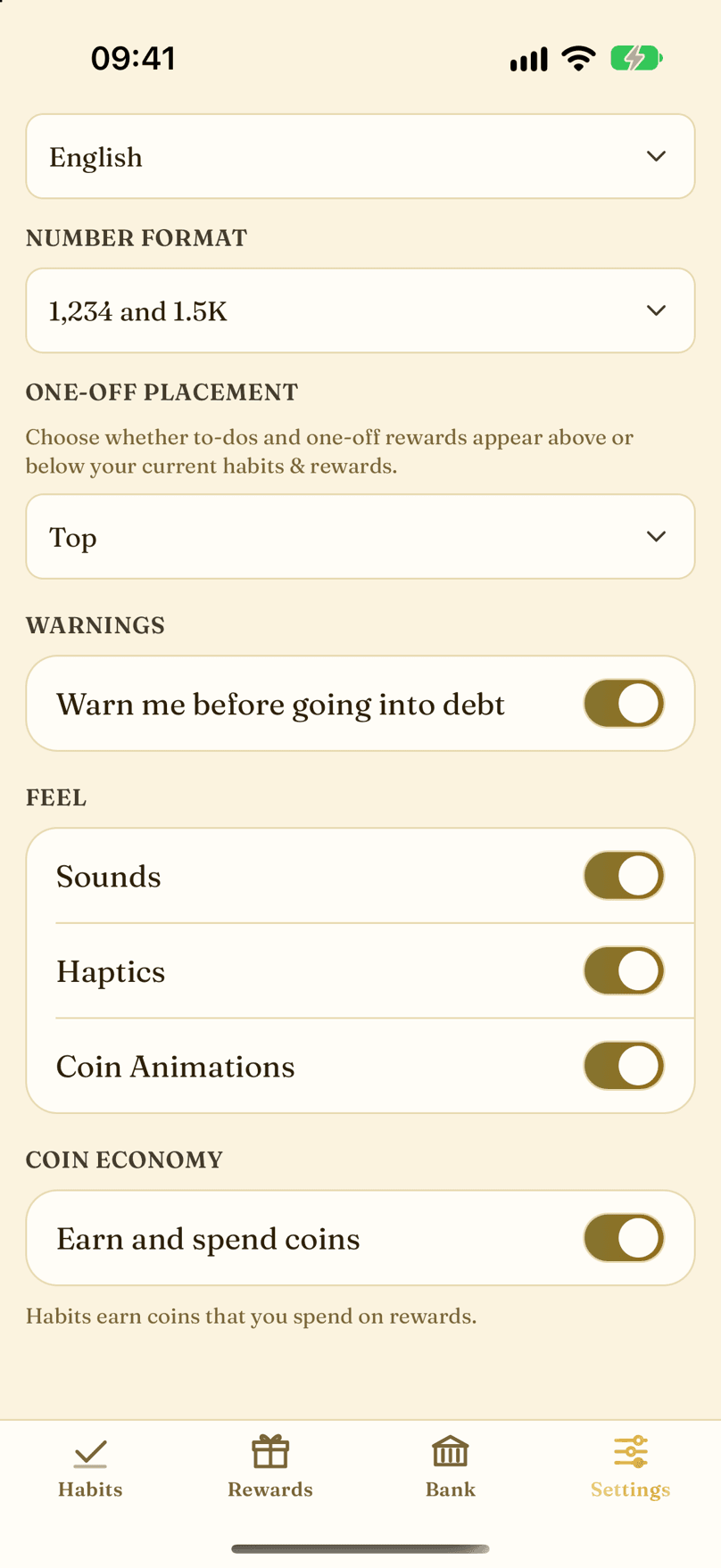
- Coin economy: its own section at the very bottom of App settings.
- Earn and spend coins: the switch for the whole coin economy.
- The line under it describes the mode you are in right now.
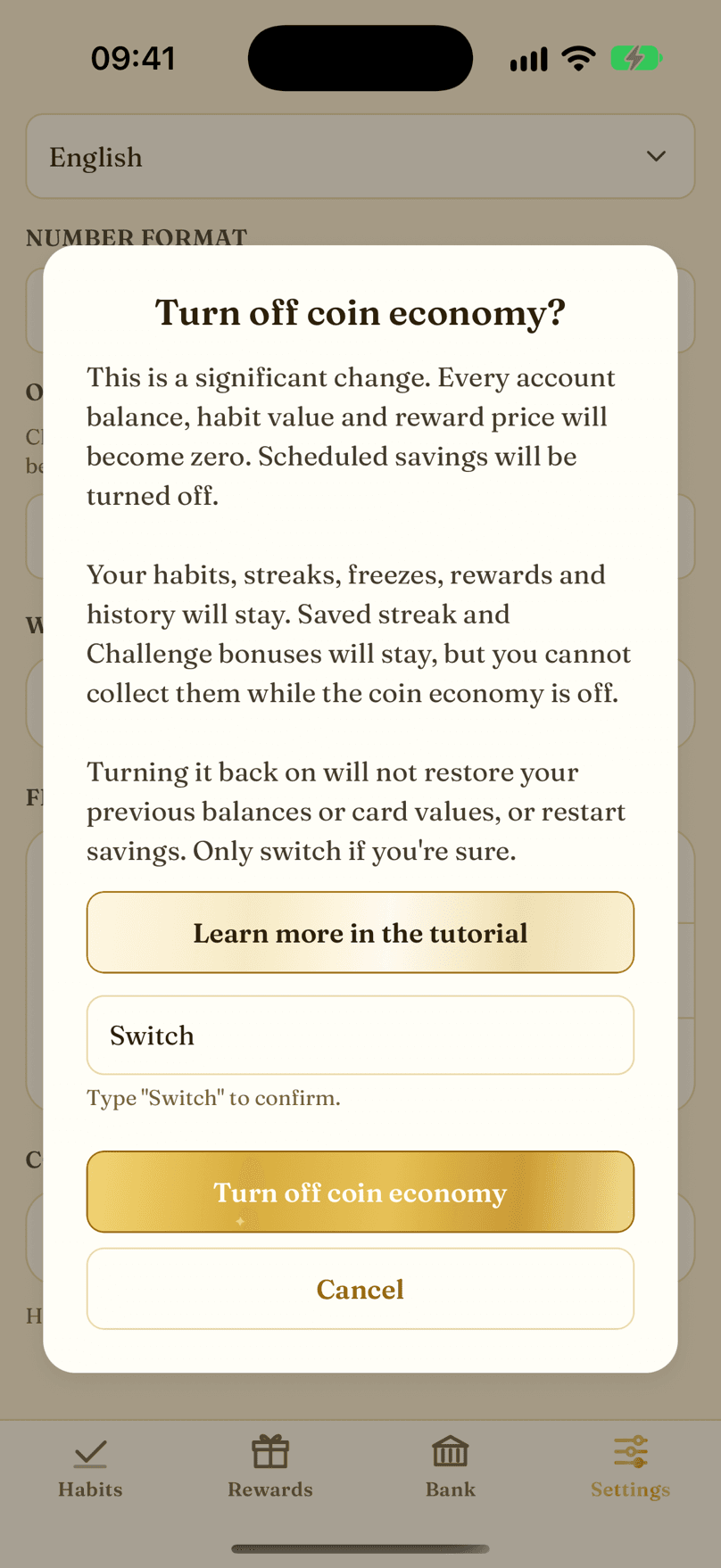
- What changes when you switch, in plain words.
- Learn more in the tutorial opens this guide.
- Type Switch here to confirm.
- The confirm button makes the change. Cancel leaves everything as it was.
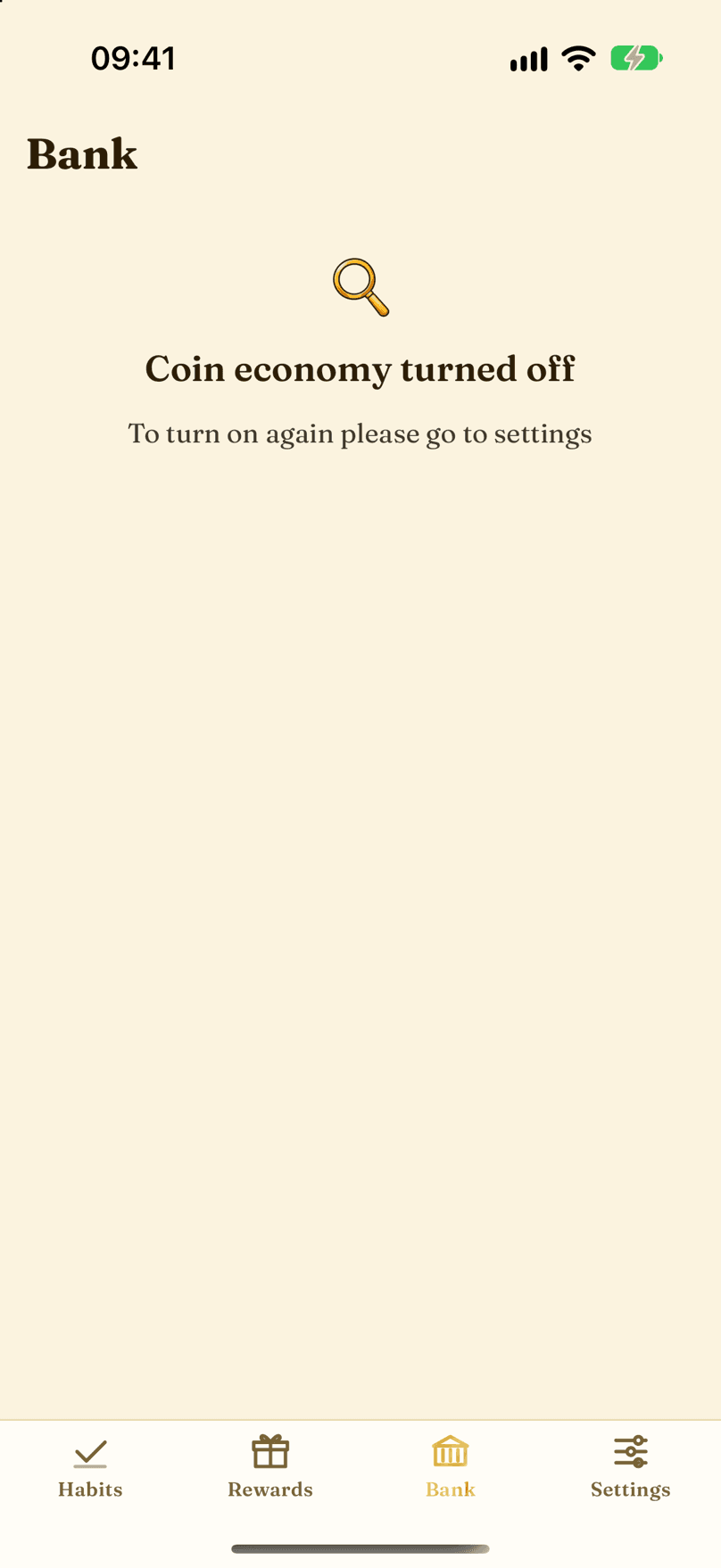
- The Bank while coins are off: one message and a note to turn coins back on in Settings.
Settings and BackupYour account, your data, and one active device.
-
The Settings page is the control room: account, subscription, notifications, app settings, themes, help, and privacy.
-
Your data backs up automatically as whole-file snapshots to your account. The model is one active device per account: to use another phone, you move your account with the guided flow in the app.
-
If the phone is lost or broken, an emergency takeover restores your latest verified backup on a new device. Deleting the account and exporting data also live here.
-
Help & Resources has a Rate Spend Your Habits row that opens the store's review page. Now and then, after a good day of habits, the app may also show your phone's own rating sheet. It asks rarely, and never asks what you think first.
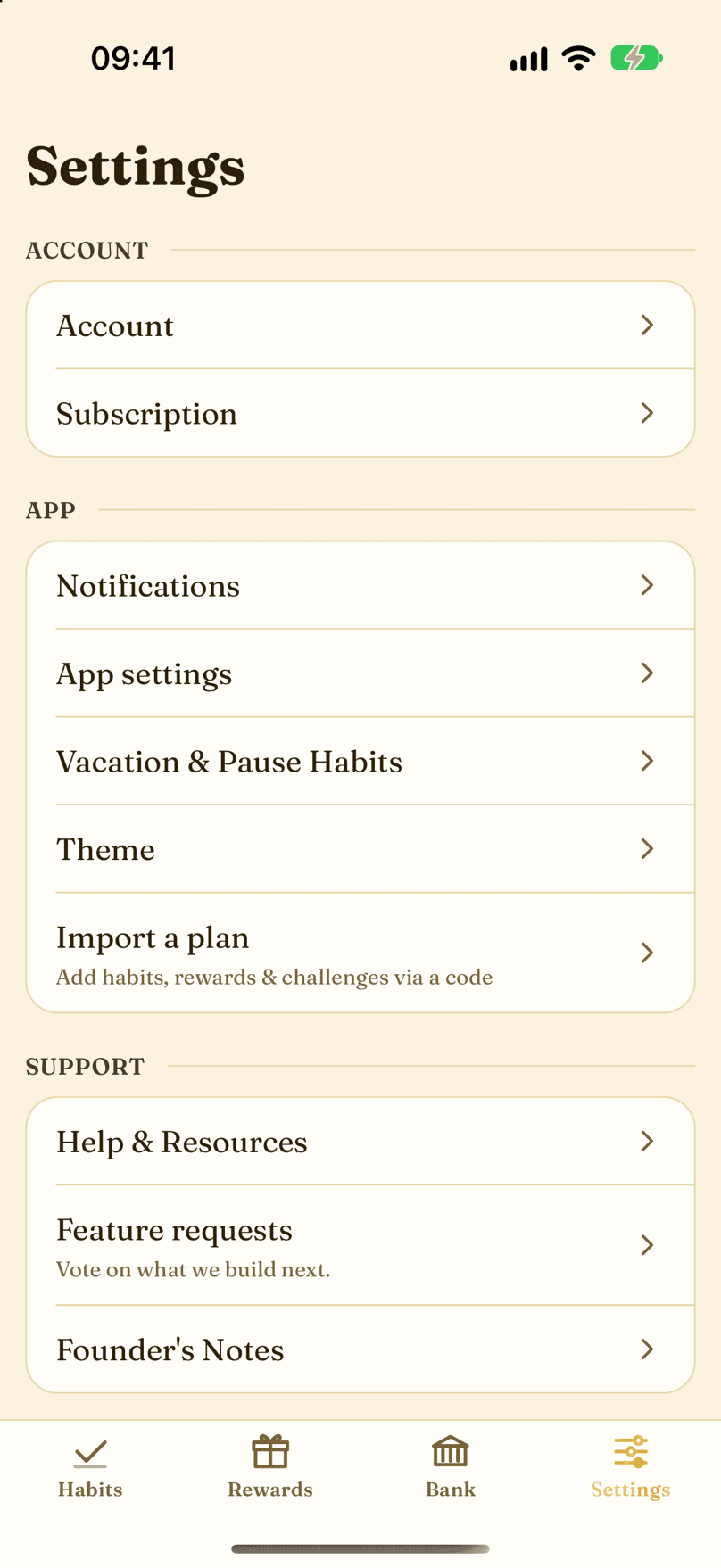
- Account: email, password, data export, reset, sign out, and account deletion.
- Subscription: your plan, restore purchases, and how to cancel.
- Notifications: reminders and permissions.
- App settings: day rollover, timezone, language, number format, feel, and the coin economy switch.
- Vacation & Pause Habits: time off and habit archives.
- Theme: pick your look. Every theme is free.
- Import a plan: add habits, rewards and challenges from a Plan ID.
- Help & Resources: tutorials, the support chat, bug reports, email support, and rating the app.
- Feature requests: vote on what we build next.
The SubscriptionOne subscription, monthly or yearly, with a free trial.
-
Spend Your Habits is one subscription, monthly or yearly, with a free trial from the App Store or Google Play. The standard trial is two weeks, and the app shows the exact length the store offers you before you start. A payment method is required to start the trial, there is no charge during it, and it renews automatically afterwards.
-
Each store account gets one trial. If yours is already used, the app simply shows the price and a Subscribe button.
-
You need an active trial or subscription to use the app. If it ends, your habits and history stay safe on your phone and in your backup. Subscribe or restore a purchase to carry on.
-
The current price always shows in the app and on the store listing.
-
Cancel anytime in the store, or follow the How to cancel guide inside the app. Deleting the app or your account does not cancel the store subscription.
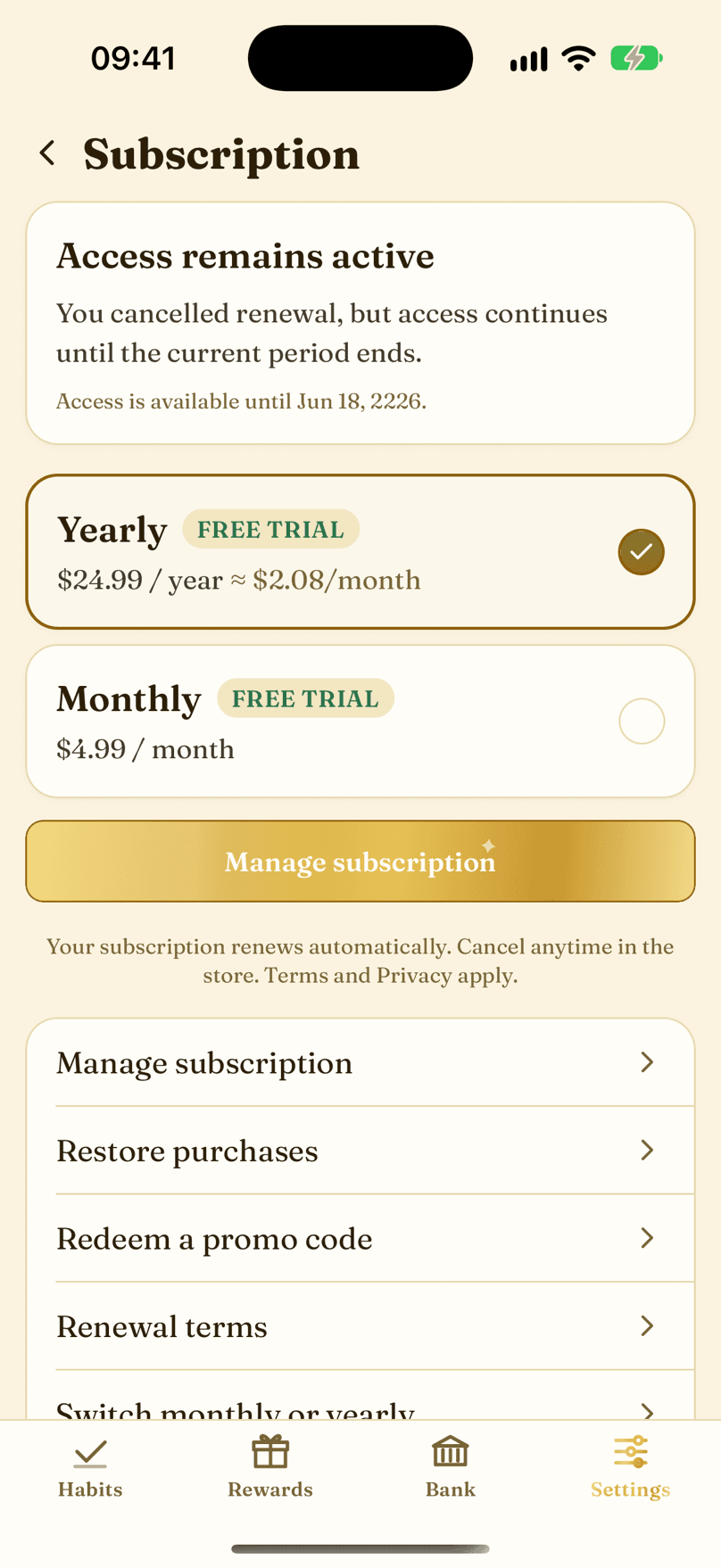
- The status banner: shows whether your subscription or trial is active.
- The yearly plan card, with the store price.
- The monthly plan card, with the store price.
- Manage the subscription straight from the app.
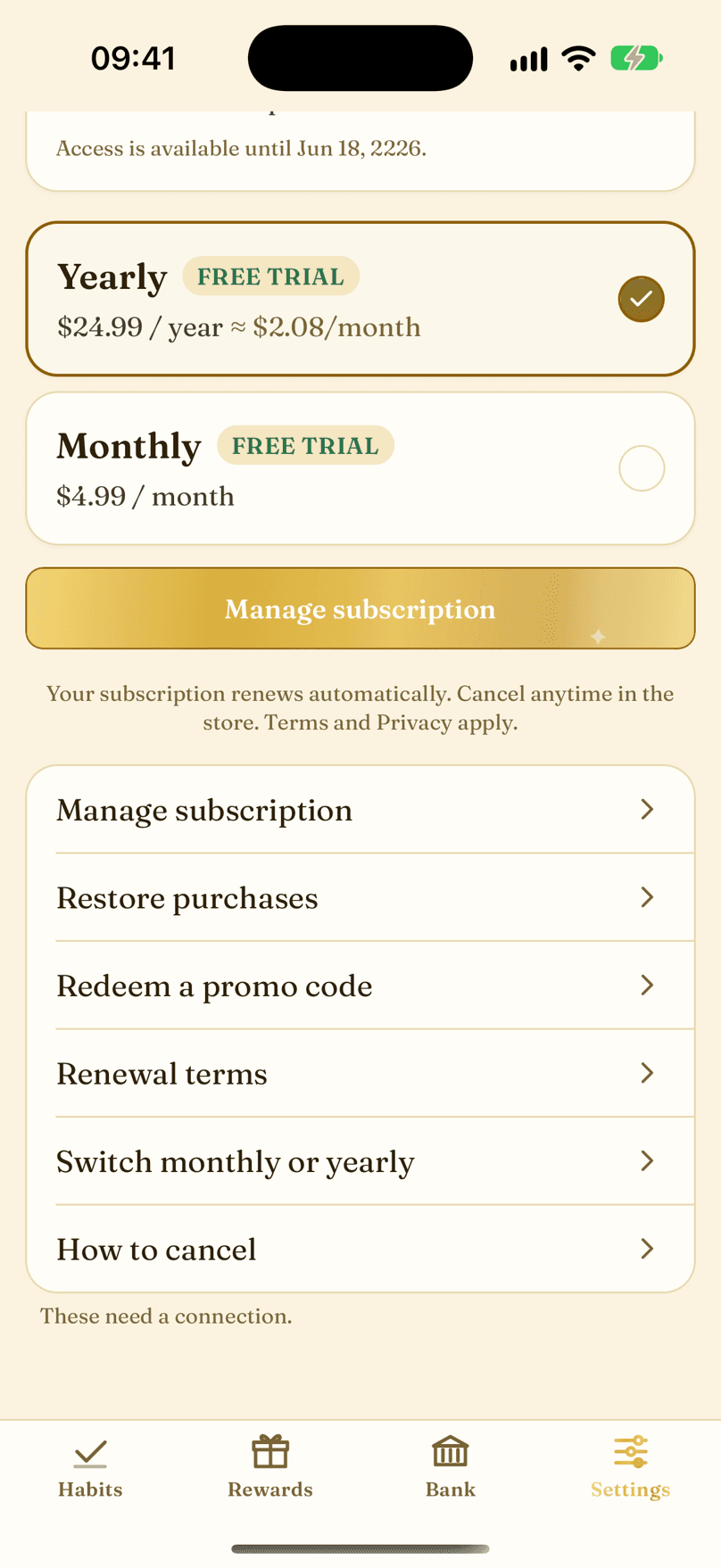
- Restore purchases after a reinstall.
- Redeem a promo or offer code from the store.
- Renewal terms, in plain language.
- Switch between monthly and yearly.
- The How to cancel guide, step by step.
NotificationsReminders and nudges, all set by you.
-
Reminders are local to your device. Nothing is sent from a server and nothing leaves your phone.
-
Set the master switch, choose which kinds of notification you want, and tune the per-habit reminder time in each habit's editor. The Pomodoro timer row adds an alert when a focus or break ends.
-
The Permission section shows whether your phone allows notifications, with a shortcut to your phone's settings.
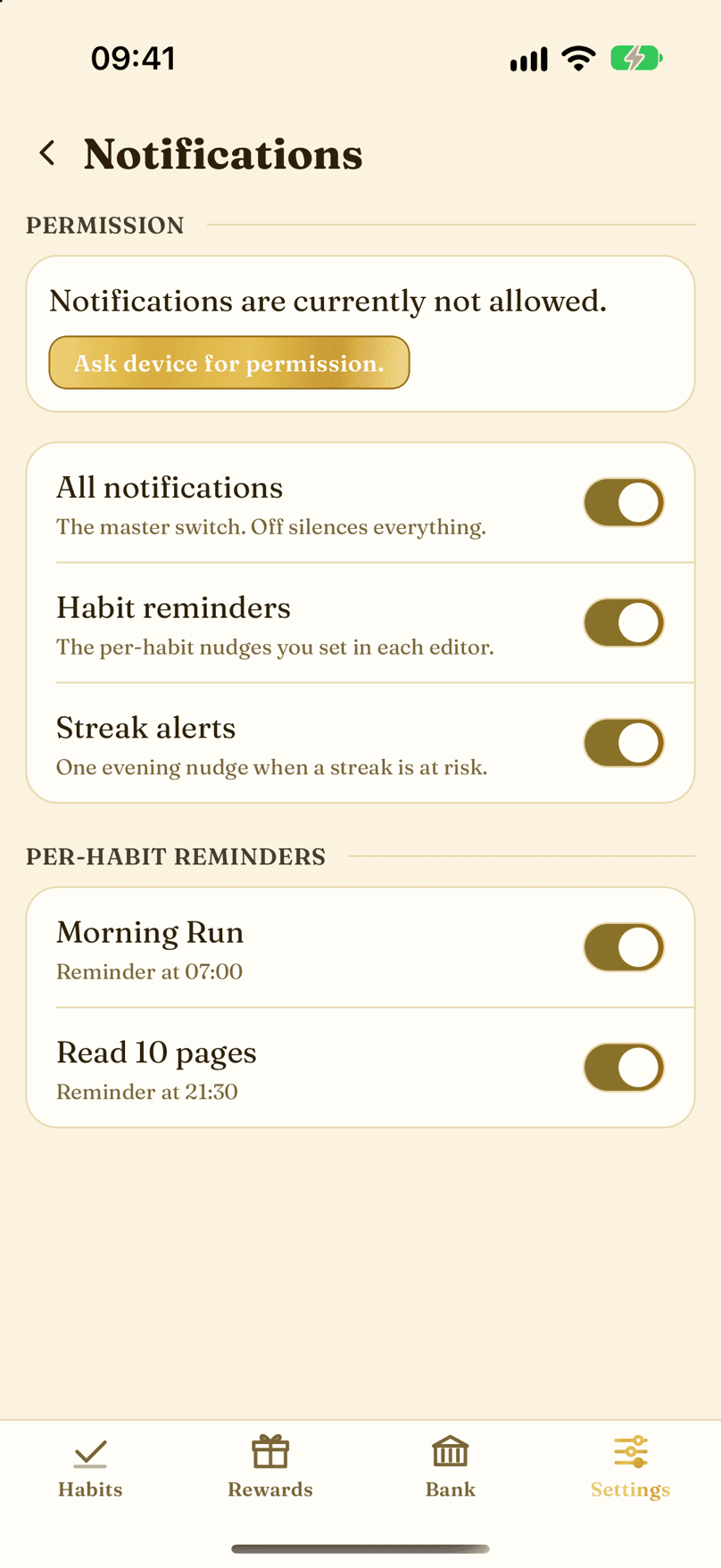
- The master switch. Off silences everything.
- Per-habit reminders, as set in each habit editor.
- An evening nudge when a streak is at risk.
- One row per habit with a reminder.
- The reminder time for this habit, as set in its editor.
App SettingsDay rollover, timezone, language, feel, and coins.
-
The day rollover sets the hour when a new day begins, so late-night completions still count for the day before. The timezone follows your phone unless you pick one yourself.
-
The language switches the whole app between English, Spanish and German. The number format is separate, so you can write 1,234 or 1.234 in any language.
-
One-off placement puts to-dos and one-off rewards above or below your regular cards. Warnings can alert you before a purchase takes you into debt, and Feel holds sounds, haptics and coin animations.
-
At the very bottom, Coin economy turns coins on or off for the whole app. Read the Coin Economy guide before you switch. While coins are off, the debt warning and coin animation settings are hidden and keep their values.
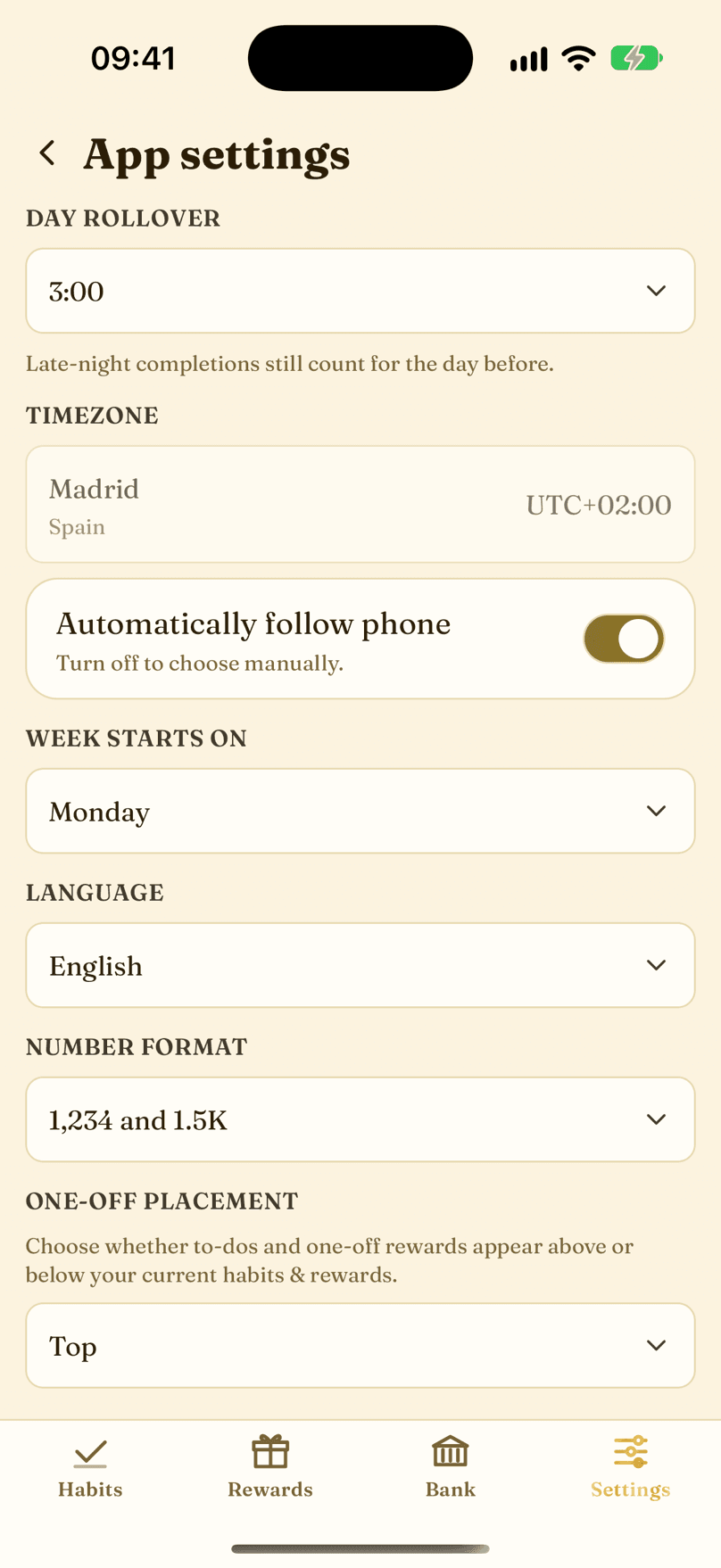
- Day rollover: the hour a new day begins. Set it late and late-night completions still count for the day before.
- Timezone: follows your phone automatically. Turn that off to search for a city.
- Week starts on: which day begins the week. Monday or Sunday.
- Language: English, Español or Deutsch for the whole app.
- Number format: how thousands and decimals are written.
- One-off placement: to-dos and one-off rewards at the top or the bottom.
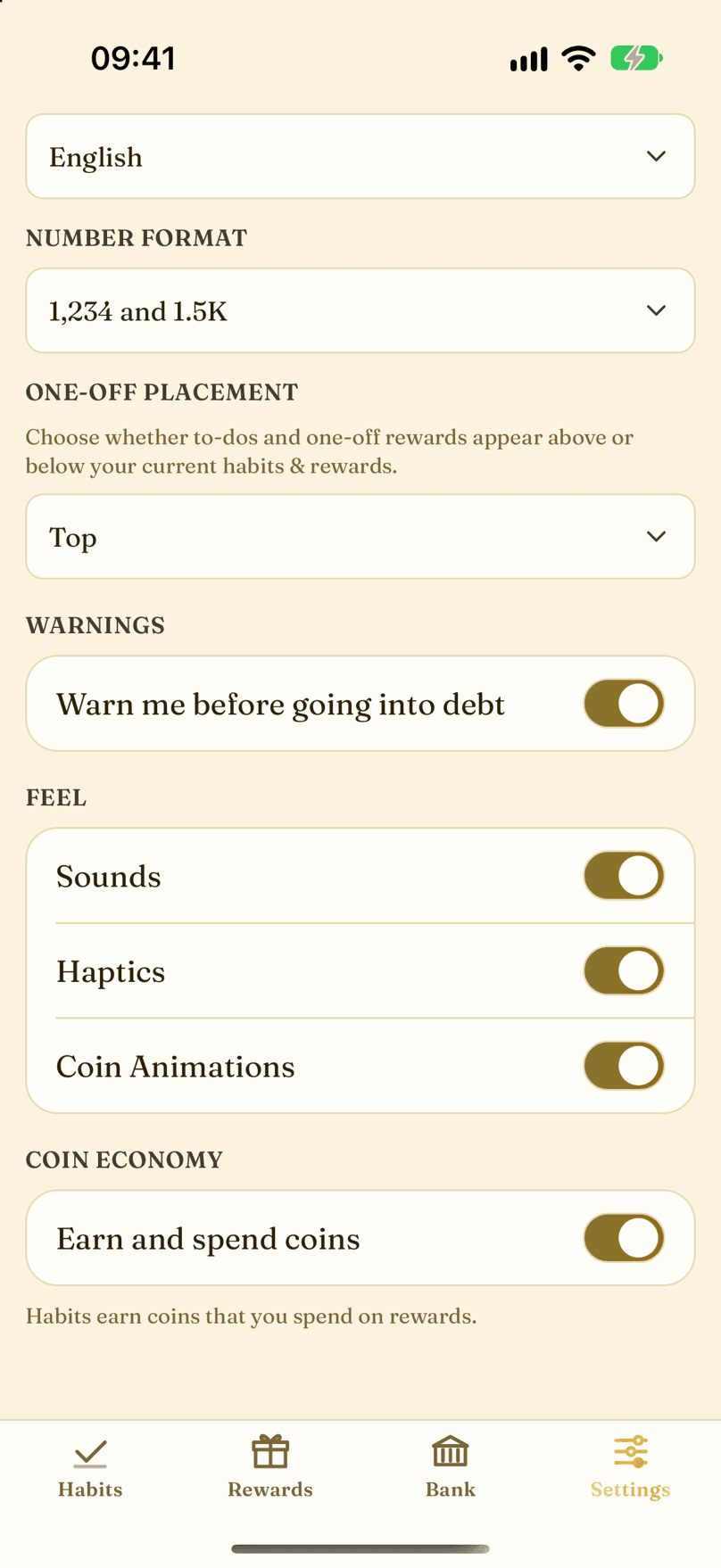
- Warn me before going into debt: a heads-up before a purchase takes your balance below zero.
- Sounds: the coin and completion sounds.
- Haptics: the physical feedback.
- Coin Animations: travelling coins and bursts. Turn them off for a calmer screen.
- Coin economy: the Earn and spend coins switch for the whole app.
Vacation and PauseDays off never break a streak. Pause a habit.
-
Plan the days you are away. A day off never breaks a streak, and completing a habit on a day off still counts and earns.
-
Vacations can be open-ended. Tap I am back to end one; the day you tap it stays protected.
-
The pause section hides a habit everywhere between a required start and resume date, with vacation semantics. A habit on vacation keeps its schedule and can still be completed. A paused habit is archived until it returns.
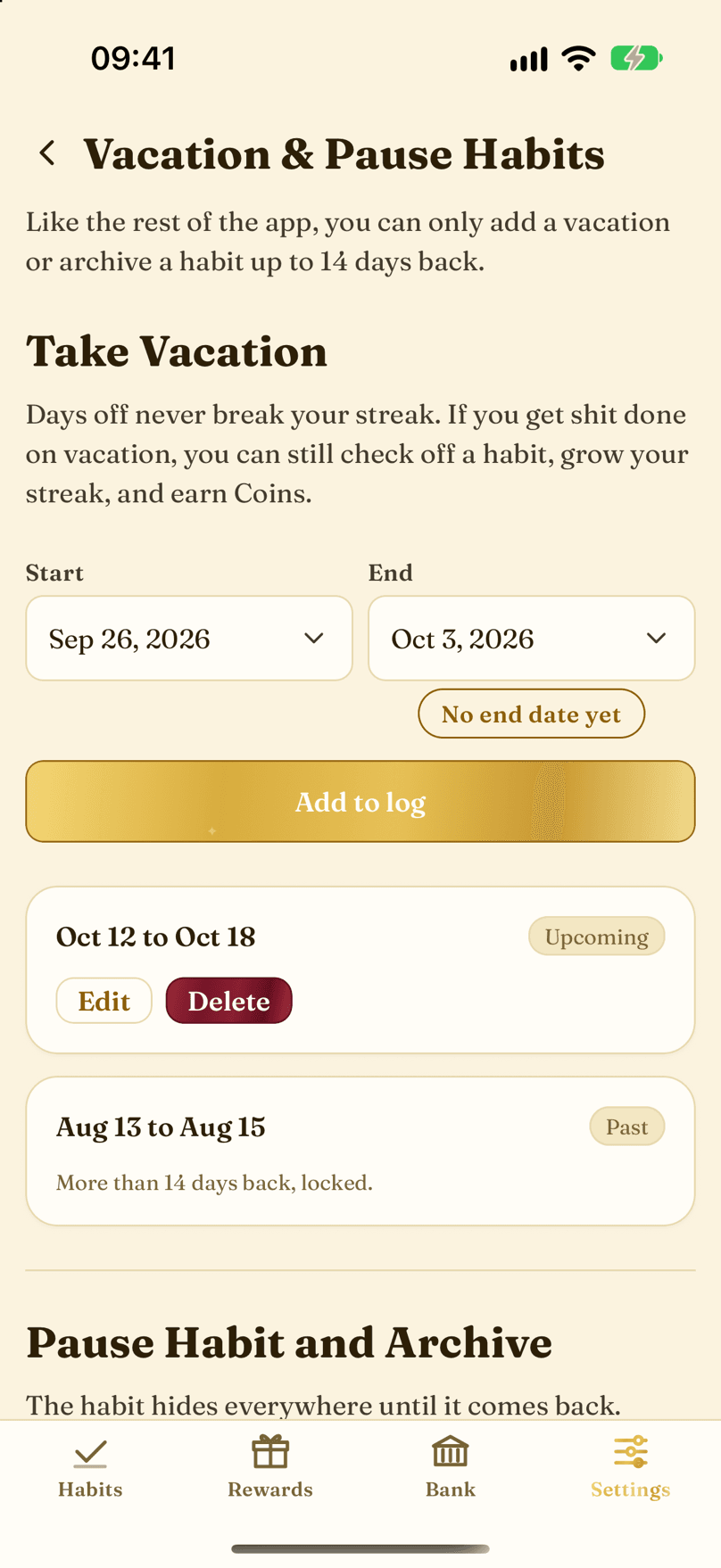
- Take Vacation: plan the days you are away.
- Start date. It can be backdated up to 14 days.
- End date.
- Leave the vacation open, with no end date.
- Add the vacation to the log. If you do not click this button the vacation is not recorded.
- Your time off: past and upcoming vacations.
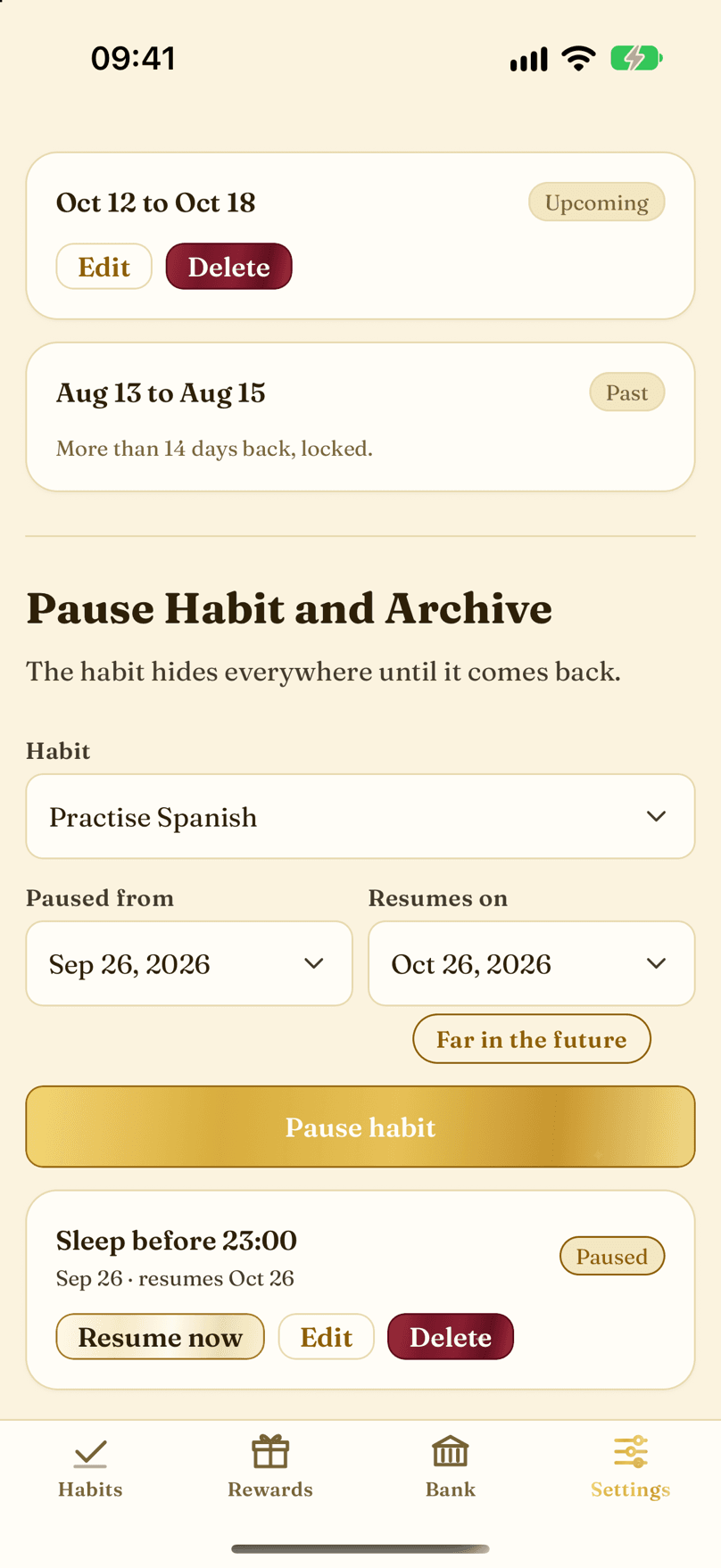
- Pause Habit and Archive: hide a habit until a date.
- Which habit do you want to archive and hide?
- Paused since: the start of the pause.
- Resumes on: the return date.
- Set the return far away if you are unsure.
- Pause applies the archive.
- A paused habit, shown with its return date.
Import a Shared PlanPaste the plan ID and preview everything first.
-
A shared plan is a bundle of habits, rewards, labels and challenges from the Habit System Creator. Paste the 12-digit Plan ID from your email to preview everything and choose what to install. Plan IDs expire after 30 days.
-
With the coin economy turned off, imported habits and rewards arrive at 0 coins and imported savings stay off.
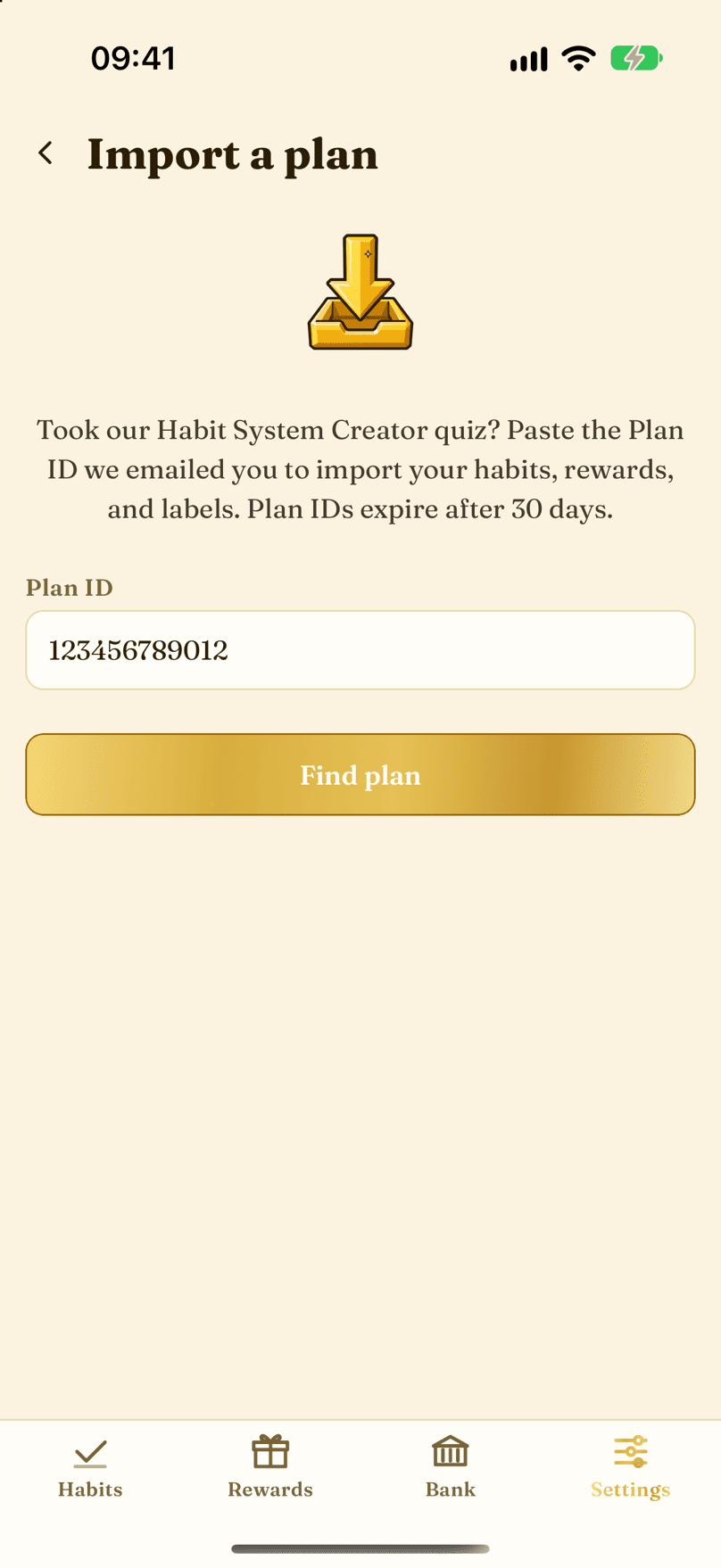
- Paste the plan ID here.
- Find plan loads the preview.
Feature RequestsSuggest ideas and upvote the best ones.
-
The feature board is a public wish list. Every idea can be upvoted, and the most wanted ones rise to the top.
-
Have a new idea? Suggest it with the button. We read every suggestion and review new ideas twice a week, and the ones we can build go on the board for everyone to vote on.
-
Each account can send up to 20 suggestions.
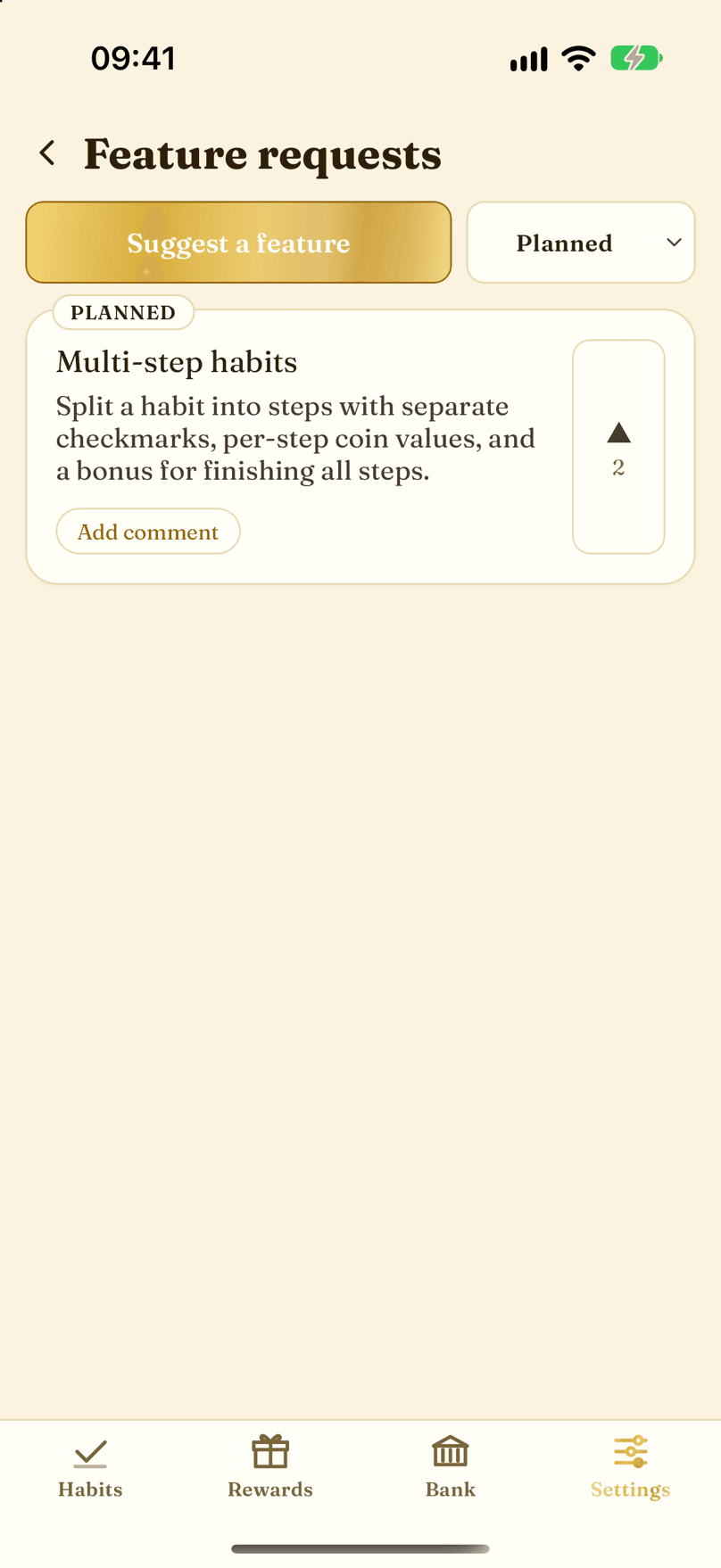
- Suggest a feature of your own.
- An idea on the board, with its title.
- The upvote button. Votes decide the order.
Video Tutorials
Certain features are better explained in a video
Video Title
Coming Soon and inserted here